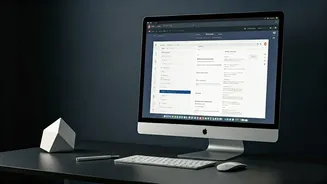







Vertical Tabs Explained
Google is introducing a significant desktop upgrade to Chrome: vertical tabs. This innovative feature repositions your open tabs from the traditional horizontal
strip at the top of the window to a neat, scrollable list along the left-hand side. This change is particularly beneficial for users who frequently juggle numerous tabs, as it allows for clearer visibility of full tab titles, preventing the common issue of truncated or illegible names. The system also enhances the organization of Tab Groups, making it easier to manage different sets of related pages. For those concerned about screen real estate, Chrome offers a handy option to collapse the vertical tab panel into a compact row of favicons, maintaining a clean interface while still providing quick access to your open tabs. Activating this feature is straightforward: simply right-click on the top area of any Chrome window and select 'Show Tabs Vertically.' You can revert to the standard horizontal layout at any time by choosing the corresponding option.
Enhanced Reading Mode
Complementing the vertical tabs, Chrome is also unveiling an improved immersive reading mode. This update transforms how users interact with webpages, shifting from a side-panel display to a full-page, distraction-free view. The primary goal of this mode is to create a cleaner, more focused reading environment by stripping away visual clutter from busy websites. It aims to make lengthy articles and dense content more accessible and enjoyable to consume. Accessing this new reading mode is designed to be intuitive. Users can right-click on a webpage and select 'Open in reading mode,' or alternatively, utilize a dedicated 'Reading Mode' button that now appears in the address bar. While the feature is rolling out, its availability might vary slightly across different users initially, but it promises a significantly more pleasant way to engage with online text.