








Visual Clarity Enhancements
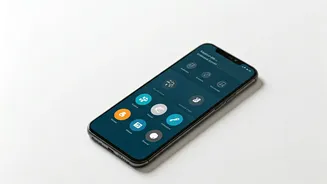
As eyesight changes with age, digital screens can become a challenge. Thankfully, modern devices offer robust solutions to improve readability. You can significantly
increase the size of all text across the entire interface, making it much easier for your parents to read messages, emails, and any on-screen content. Beyond just size, enabling bold text can make characters stand out more distinctly, further aiding comprehension. For those who need to see finer details, magnification or zoom features allow users to enlarge specific portions or the entire screen with simple gestures, akin to using a magnifying glass. Furthermore, adjusting contrast and color settings can be crucial. Some individuals benefit from higher contrast between text and background, while others might find specific color filters helpful to distinguish elements more clearly, especially if they have experienced changes in color perception or general visual fatigue. These display adjustments can be found within the 'Accessibility' settings under 'Display & Text Size' on most iOS and Android devices, with options like 'Larger Text', 'Bold Text', 'Zoom', and 'Color Filters' or 'Color Correction'.
Optimizing Audio Experience
Addressing auditory challenges is equally important for ensuring a seamless digital experience for older adults. If hearing loss affects one ear more than the other, enabling 'Mono Audio' is a vital adjustment. This feature consolidates stereo sound into a single channel, ensuring that all audio content is delivered equally to both ears, preventing the loss of information that might be present in one channel only. For parents who use hearing aids, most smartphones are designed with compatibility in mind; ensuring this setting is activated is essential for clear sound transmission. Beyond direct audio output, 'Sound Notifications' can be a critical safety feature for those with significant hearing impairments. This function provides visual alerts for important sounds, such as a doorbell ringing, a smoke alarm sounding, or even a baby crying, alerting users to events they might otherwise miss. These audio-related enhancements can typically be found within the 'Accessibility' menus under 'Audio/Visual', 'Hearing Devices', or 'Sound Recognition', making technology more inclusive for those with hearing sensitivities.
Streamlining Interaction & Control
For individuals experiencing changes in dexterity or motor control, interacting with touchscreens can become difficult. Devices offer specific settings to bridge this gap. 'Touch Accommodations' on iOS, or similar 'Interaction Controls' on Android, allow for customized responses to touch. This includes adjusting the required duration of a touch, ignoring accidental or repeated taps, and refining how the screen reacts to finger contact, making it more forgiving for those with less precise movements. Perhaps the most empowering feature for many is 'Voice Control' or 'Voice Access'. This enables users to operate their entire device using spoken commands, from navigating between apps and dictating messages to performing complex actions, all without needing to touch the screen. Additionally, features like 'AssistiveTouch' on iOS and the 'Accessibility Menu' on Android provide customizable on-screen buttons and shortcuts. These offer easier access to frequently used functions compared to hunting for tiny icons or memorizing complex gestures. These interaction adjustments are typically located within the 'Accessibility' section of device settings, often under 'Touch' or 'Interaction Controls'.
Simplified Interfaces & Modes
To further simplify the user experience, many devices offer specialized modes designed for ease of use. 'Guided Access' on iOS is a powerful tool that can lock the device into a single application, preventing accidental exits or distractions. It also allows for specific screen areas or hardware buttons to be disabled, creating a focused environment perfect for specific tasks or preventing unintended navigation. For Android users, 'Easy Mode' or 'Simple Mode' launchers are available, often offered by manufacturers or downloadable from app stores. These modes present a simplified home screen with significantly larger icons, a reduced number of options, and a more straightforward layout, making it much easier to find and launch desired applications. These simplified interfaces are invaluable for users who find standard device layouts overwhelming, ensuring they can access essential functions without confusion.
Leveraging Special Features
Beyond general accessibility, specific features can dramatically improve daily digital engagement. For instance, 'Live Captions', available on both iOS and Android, provides real-time transcriptions of any audio playing on the device, including phone calls, videos, and podcasts. This is a game-changer for individuals who are deaf or hard of hearing, reducing anxiety and improving comprehension during communication and media consumption. Another highly beneficial, though less widely known, feature is 'Select to Speak' on Android and 'VoiceOver' on iOS. 'Select to Speak' allows users to tap or drag over text on the screen, and the device will read it aloud, which is exceptionally useful for those who struggle with reading long articles or fine print. While 'VoiceOver' on iOS is a more comprehensive screen reader that describes on-screen content and relies on gestures for interaction. Additionally, 'Grayscale Mode' on iPhones, found within 'Color Filters', can reduce eye strain and even discourage excessive phone usage by presenting the screen in black and white. Android offers similar 'Color Correction' options. These targeted features offer significant enhancements for specific needs, making technology more inclusive and user-friendly for everyone.