

The Foundation: Set Your Chair Height First
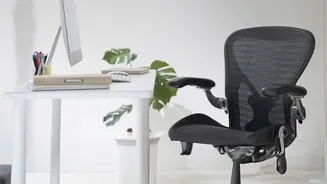
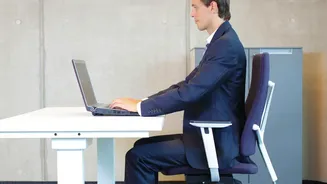
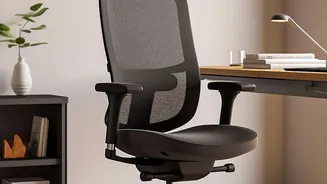
Before you even think about your monitor, your chair sets the stage for good posture. The goal is to create a stable and supported base. Adjust your chair height so that your feet can rest flat on the floor. Your thighs should be roughly parallel to the ground,
with your knees positioned at or slightly below your hips. If your feet dangle, use a footrest or a sturdy box. You should be able to sit with your hips far back in the chair, allowing your lower back to make contact with the lumbar support. If your chair lacks built-in support, a rolled-up towel or a small cushion placed at the curve of your lower back can make a significant difference.
The Main Event: Screen Height and Alignment
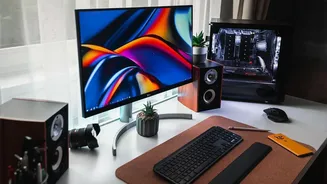
This is where the magic happens for your neck. The key rule of ergonomics is to position the top of your monitor screen at or slightly below your eye level. This alignment allows you to look slightly down toward the center of the screen, which is a natural and neutral position for your neck. You should never have to tilt your head up or crane your neck down to see your work. If your monitor is too low, you'll instinctively hunch over, causing strain in your upper back and shoulders. The screen should be placed directly in front of you to avoid twisting your neck.
No-Cost and Low-Cost Screen Adjustments
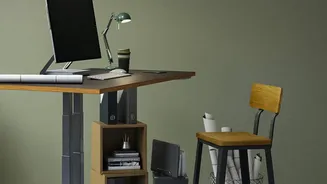
You don't need expensive equipment to achieve the correct height. The simplest solution is to use a stack of sturdy books, like old textbooks or reams of paper, to elevate your monitor. For a slightly more polished look, you can repurpose a small wooden crate or shelf. If you're willing to invest a small amount, a dedicated monitor stand or riser is a great option that often provides extra desk space underneath. For maximum flexibility, a fully adjustable monitor arm allows you to fine-tune the height, distance, and angle with ease.
Finding the Right Viewing Distance
Height is only half the battle; distance is just as crucial. A good rule of thumb is to position your monitor about an arm's length away from you. Sit back in your chair and extend your arm; your fingertips should comfortably touch the screen. This distance, typically between 20 and 30 inches, helps reduce eye strain because your eyes can focus without extra effort. If you find yourself squinting or leaning forward to read text, your monitor is too far away. If the screen feels overwhelming, it's too close. Adjust accordingly until you find a comfortable middle ground.
The Laptop Problem and Its Solution
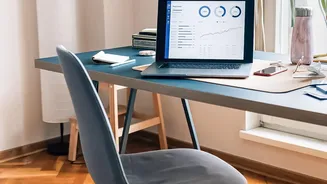
Laptops are notoriously poor for ergonomics because the screen and keyboard are fixed together. When the keyboard is in a comfortable position for your wrists, the screen is far too low, forcing you to hunch. When the screen is at the correct eye level, the keyboard is too high for comfortable typing. The best and most recommended solution is to treat your laptop like a monitor. Place it on a stand or stack of books to raise the screen to eye level, and then use a separate, external keyboard and mouse. This setup allows you to position both your screen and your input devices ergonomically.
Remember to Move and Take Breaks
Even the most perfectly ergonomic setup cannot protect you from the negative effects of remaining stationary for too long. Your body is designed to move. Set a timer to remind yourself to get up and take a short break every 30 to 45 minutes. During these breaks, walk around, do a few simple stretches, and give your eyes a rest by looking at something in the distance. This regular movement helps improve circulation, reduces muscle stiffness, and prevents the gradual build-up of tension in your back and neck.