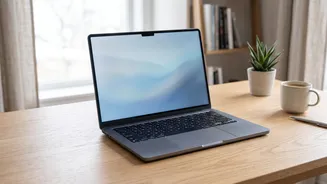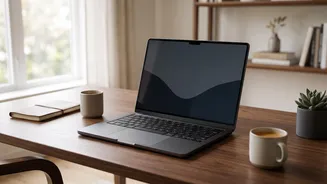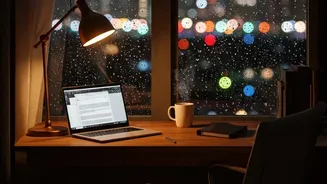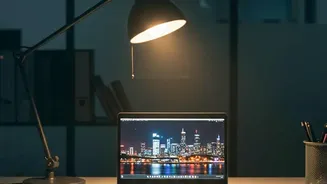



Staring at a laptop all day can leave your eyes feeling tired, dry, and strained. The culprit is often a simple mismatch between your screen's brightness and the light in your room. Finding the right balance is key to all-day visual comfort.
Why Your Screen Causes Discomfort
That familiar
feeling of tired, gritty, or aching eyes after hours on a laptop has a name: Digital Eye Strain, or Computer Vision Syndrome. It happens for a few reasons, including reduced blinking and focusing on a close-up screen for too long. But one of the biggest factors is a mismatch in brightness. When your screen is much brighter than your surroundings, it acts like a flashlight, forcing your eyes to constantly adjust between the intense screen and the dimmer room. Conversely, if the screen is too dim in a bright room, you'll squint and strain to see clearly. This constant effort is what leads to fatigue, discomfort, and even headaches.
The Golden Rule: Match Your Screen to the Room
There is no single perfect brightness setting for every situation. The most important rule is to adjust your screen's brightness to match the ambient light in your environment. Your screen should be a source of information, not the primary source of light in the room. A simple way to check this is the 'paper test'. Open a blank white document or webpage and hold a piece of white paper next to your screen. If the screen glows significantly brighter than the paper, it's too bright. If the screen looks grey and dull compared to the brightly lit paper, you should increase the brightness. The goal is for the screen's white background to have a similar luminance to your surrounding environment.
Let Your Laptop Adjust for You
Most modern laptops come equipped with features designed to automatically manage brightness and colour for you. These tools use ambient light sensors to detect the lighting conditions of your room and adjust the display accordingly. In Windows, this feature is often called 'Adaptive Brightness' or 'Change brightness automatically when lighting changes'. You can typically find it in your system's Display settings. On MacBooks, a similar feature called 'True Tone' adjusts the colour and intensity of your display to make whites look more natural and consistent with the surrounding light. Activating these features can take the guesswork out of finding a comfortable setting, as the laptop does the work for you.
Go Beyond Brightness with Night Mode
In addition to brightness, the colour temperature of your screen plays a significant role in eye comfort, especially in the evening. Screens emit a lot of blue light, which can interfere with your body's production of melatonin, the hormone that helps you sleep. To combat this, operating systems have builtin filters. Windows has 'Night Light' and macOS has 'Night Shift'. These features reduce the amount of blue light your screen emits by shifting the colours to a warmer, more yellowish tone during the evening hours. Using these modes can make evening screen time less strenuous on your eyes and may help you sleep better.
Simple Habits for Happier Eyes
Adjusting your screen is a great first step, but a few other habits can make a huge difference in preventing eye strain. The most recommended practice is the 20ndary rule. Every 20 minutes, take a 20ndary break and look at something at least 20 feet (about 6 metres) away. This gives your eye muscles a chance to relax from constant closeup focus. Also, make a conscious effort to blink more often. When we stare at screens, our blink rate can drop significantly, leading to dry, irritated eyes. Finally, ensure your workspace has soft, balanced lighting to reduce glare and extreme contrast between your screen and your surroundings.