






Start With Your Chair
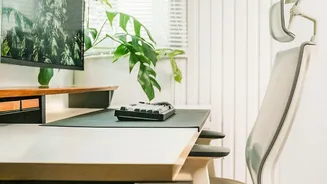
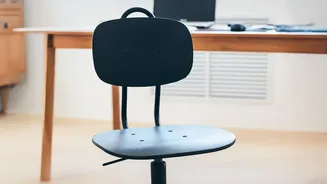
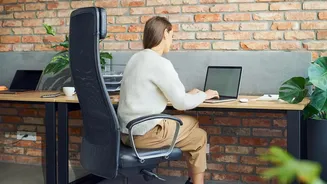
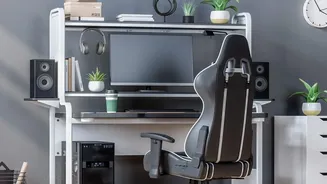
Your chair is the foundation of a healthy workspace. Proper setup can prevent a cascade of posture problems. First, adjust the height so your feet rest flat on the floor with your thighs parallel to it. Your knees should be at roughly a 90 to 120-degree
angle. Sit back fully in the chair, ensuring your lower back is supported by the backrest. If your chair has lumbar support, adjust it to fit the natural curve of your spine. Armrests should be positioned so your shoulders are relaxed and your arms rest gently on them, with your elbows close to your body. An improper chair setup is often the primary culprit for lower back pain, a common complaint among office workers.
Position Your Monitor Correctly
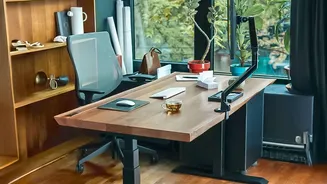
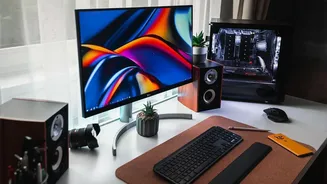
Craning your neck to see your screen is a major source of pain and tension. The rule of thumb is simple: position your monitor directly in front of you, about an arm's length away. The top of the screen should be at or slightly below your eye level. This ensures you can look straight ahead without tilting your head up or down. If you use a laptop, this is nearly impossible without help. Consider investing in a separate monitor or a laptop stand and an external keyboard to elevate your screen to the proper height. If you wear bifocals, you may need to lower your monitor an extra inch or two for comfortable viewing.
Align Your Keyboard and Mouse
Your keyboard and mouse placement directly impacts your wrists, arms, and shoulders. They should be on the same surface and positioned so that your wrists remain straight and your upper arms are close to your body. Your elbows should be at a 90 to 120-degree angle, allowing your forearms to be parallel to the floor. Avoid bending your wrists upwards or sideways while typing. Many people find that bringing the keyboard closer to the edge of the desk helps maintain a more natural, relaxed arm position. If your mouse is too far away, you'll end up overreaching, which can strain your shoulder over time. Keep it close to your keyboard.
Check Your Lighting and Environment
Ergonomics isn't just about your body; it's also about your environment. Poor lighting can cause significant eye strain and headaches. Ideally, your workspace should have some natural light, but avoid placing your monitor directly in front of a window, which can create glare. Position your monitor perpendicular to windows. Ensure your overall room lighting is comfortable and use a desk lamp for focused tasks if needed. Also, keep frequently used items like your phone or a notepad within easy reach to avoid awkward twisting and reaching, which can lead to repetitive strain injuries.
The Most Important Tip: Move
Even the most perfectly ergonomic setup has a flaw: it encourages you to stay still. The human body is not designed for prolonged sitting. Set a timer to remind yourself to get up and move for a few minutes at least once every hour. Walk around, stretch your legs, or do simple shoulder rolls and neck stretches right at your desk. These short breaks improve circulation, reduce muscle stiffness, and give your eyes a rest from the screen. Many experts recommend following the 20-20-20 rule: every 20 minutes, look at something 20 feet away for 20 seconds to combat eye strain.