


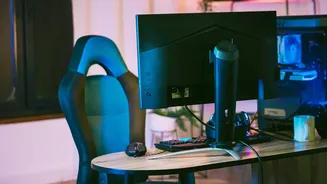
The Surprising Link: Your Neck to Your Lower Back
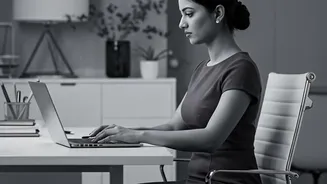
It seems unlikely, but the position of your screen directly impacts your lower back. Your spine works as a single, connected system. When your monitor is too low, you instinctively crane your neck forward and down, creating a forward head posture. This
misalignment significantly increases the effective weight of your head, putting immense strain on your neck and upper back muscles. To compensate for this imbalance, your body adjusts its entire posture, which often involves rounding the shoulders and curving the lower back. This compensatory response can lead to muscle fatigue, stiffness, and eventually, persistent pain in your lumbar region.
Step 1: Get the Height Right
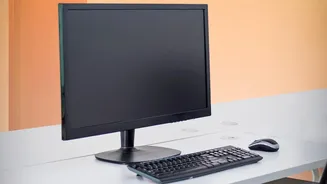
The most critical adjustment is monitor height. The general rule is to position your monitor so the top of the screen is at or slightly below your eye level. When you look straight ahead, your eyes should align with the top third of the display. This encourages a neutral neck position, preventing you from tilting your head up or down. If your monitor is too low, use a dedicated monitor stand or a stable stack of books to elevate it. Achieving the correct height is the first step in breaking the cycle of strain that travels from your neck down your spine.
Step 2: Find the Perfect Distance
Monitor distance is crucial for preventing both eye strain and poor posture. A screen that’s too far away will cause you to lean forward, while a screen that’s too close can cause eye fatigue. The ideal distance is about an arm's length away. Sit back comfortably in your chair and extend your arm; your fingertips should just about touch the screen. This distance, typically between 20 and 40 inches, allows you to read text clearly without hunching over or squinting, helping you maintain proper spinal alignment throughout the day.
Step 3: Angle the Screen for Comfort
The angle of your monitor also plays a role in comfortable viewing. To reduce glare and encourage a neutral posture, the screen should be tilted back slightly, typically between 10 to 20 degrees. This slight backward tilt aligns with your natural downward gaze when you are seated correctly. It ensures you are looking straight ahead rather than down, which helps keep your head and neck aligned properly. For those who wear bifocals, it may be necessary to lower the monitor an extra inch or two and increase the tilt to find a comfortable viewing angle without jutting your chin forward.
Bonus Tip: Setting Up Dual Monitors
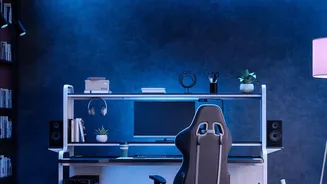
If you work with two monitors, proper placement is key to avoiding constant neck twisting. Position your primary monitor directly in front of you, following all the height and distance rules above. Place the secondary monitor right next to it, on either side. The tops of both monitors should be at the same height. Arrange them in a slight 'V' shape, angled inward toward you, which minimizes head and eye movement between screens. The goal is to be able to view either screen with a simple glance rather than a full turn of your head and neck.
Beyond the Monitor: A Holistic Approach
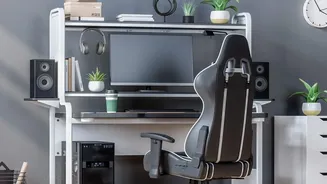
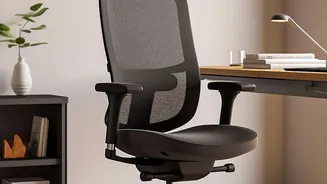
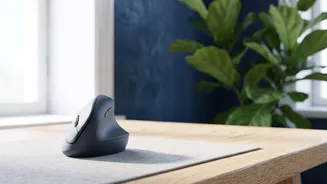
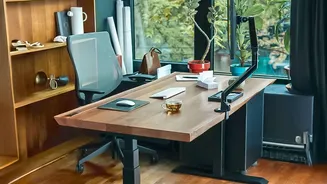
Remember, your monitor is just one part of an ergonomic ecosystem. An adjustable chair that provides good lumbar support is essential. Your feet should be flat on the floor, and your knees should be at roughly a 90-degree angle. Your keyboard and mouse should be positioned to keep your wrists straight and your shoulders relaxed. Most importantly, take frequent breaks. Follow the 20-20-20 rule: every 20 minutes, look at something 20 feet away for 20 seconds to rest your eyes. Even better, stand up and stretch every half hour to promote circulation and relieve muscle tension.