




Embrace Active Listening, Not Just Typing
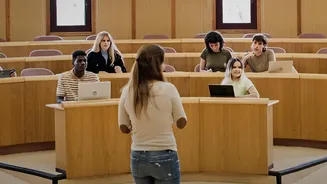
The primary benefit of using transcription tools in a lecture is not laziness; it's focus. The human brain struggles to multitask effectively. When you're typing or writing furiously, you're channelling cognitive energy into the physical act of note-taking,
not necessarily into understanding the material being presented. By using a tool to capture the raw text, you free up your mind to actively listen, process information, ask clarifying questions, and connect new ideas to what you already know. Speaking is generally much faster than typing, which means a verbal recording captures more detail with less effort. This shift from frantic scribe to engaged listener can fundamentally change your relationship with lectures, turning them from a dictation exercise into a genuine learning opportunity.
The Right Tools for the Job
Several powerful and accessible tools can turn lecture audio into text. Otter.ai is a popular choice among students for its real-time transcription, speaker identification, and generous free tier that offers a substantial number of transcription minutes per month. For those already in the Google ecosystem, the Recorder app on Pixel phones is a standout, offering highly accurate offline transcription that you can easily back up and search. Microsoft 365 subscribers have a powerful tool built right into Word for the web. The 'Transcribe' feature can handle both live recordings and uploaded audio files (like .mp3 or .wav), automatically separating speakers and adding timestamps. Choosing the right tool often depends on your existing workflow and devices, but all three provide a solid foundation for this new approach to note-taking.
A Practical Workflow for Success
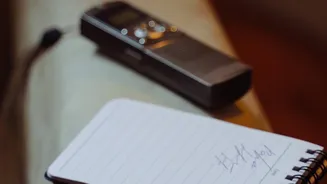
Using these tools effectively requires more than just pressing 'record'. First, always get permission. Check your university's policy or ask your professor before recording a lecture; it's a matter of courtesy and often a requirement. During the lecture, place your recording device (usually your phone) as close to the speaker as possible to ensure clear audio quality. Sit near the front if you can. After the lecture, your work begins. The initial output from any AI tool will be a raw transcript, not a finished study guide. Your goal is to transform this text into knowledge.
Transforming Raw Text into Smart Notes
A raw transcript is often filled with filler words and may have accuracy errors. The first step is to clean it up. Read through the text while listening to the audio at a faster speed (1.5x or 2x) to make quick corrections. As you review, your real task is to process the information. Use your word processor's highlighting tool to mark key definitions, important concepts, and areas you found confusing. Add your own comments and questions in the margins. Pull out key quotes or data points. This active review process is where the real learning happens. You are converting a passive recording into an active study asset. The final, annotated transcript becomes a perfectly searchable document, allowing you to find specific topics instantly when revising for exams.
Common Pitfalls and How to Avoid Them
The most significant risk of relying on transcription is the temptation to tune out during the lecture, assuming the app will catch everything. To avoid this, treat the recording as a backup, not a replacement for your attention. Another challenge is accuracy. No transcription tool is perfect, especially in rooms with background noise or multiple speakers. That's why the post-lecture review is non-negotiable. Finally, be mindful of privacy. If your classmates' comments are part of the recording, sharing that transcript could be a breach of their privacy. Use these recordings for your personal study only, unless you have explicit permission to share them.