






If you end most workdays with tired, gritty, or strained eyes, you're not alone. The constant glow of a laptop screen can take its toll, but relief is often simpler than you think. A few smart adjustments can make a world of difference.
Match Your Screen to the Room
The first and most
crucial step is to sync your screen's brightness with the light in your environment. Your laptop screen should not be the brightest light source in the room. If you're working in a dimly lit space, turn your screen brightness down. Conversely, in a bright office or near a window, you'll need to increase the brightness to make text readable without squinting. A simple test is to hold up a white piece of paper; your screen's white background should have a similar level of luminance. When there's a huge contrast between your screen and surroundings, your eyes are forced to constantly readjust, leading to fatigue and headaches.
Control Your Ambient Lighting
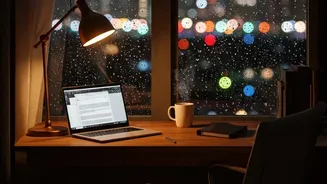
Balancing your screen is only half the battle; managing the light around you is just as important. Avoid placing your monitor with a bright window directly behind you, as this creates a silhouette effect, or directly in front of you, which can cause significant glare. The ideal setup is to have your workstation perpendicular to windows. Use blinds or sheer curtains to diffuse harsh sunlight. Instead of relying on a single, harsh overhead light, opt for several smaller, diffused light sources to create even illumination. An adjustable desk lamp, positioned to the side to light up your desk without shining on the screen, can be a great tool for task-specific lighting.
Fine-Tune Your Display Settings
Beyond brightness, other display settings can significantly enhance comfort. Adjust the contrast so that text appears sharp and clear without being harsh; a setting around 60-75% is often a good starting point. Don't be afraid to increase the font size or use your system's zoom feature if you find yourself leaning in to read. Also, consider the screen's colour temperature. Most devices have a 'night mode' or 'blue light filter' that shifts the screen to warmer, yellowish tones. While research is mixed on whether blue light itself causes eye strain, many users find that a warmer colour temperature, especially in the evening, feels more comfortable and less jarring.
Give Your Eyes a Scheduled Break
Even with perfect lighting, your eyes need regular breaks from focusing up close. This is where the 20-20-20 rule comes in, a simple but effective habit recommended by eye care professionals. Every 20 minutes, take a 20 second break to look at something at least 20 feet away. This allows the tiny muscles in your eyes to relax. Studies have shown that consistent use of this rule can reduce symptoms like eye fatigue and dryness. It’s also a great reminder to blink. When we stare at screens, our blink rate can drop by half, leading to dry, irritated eyes. So, during your 20 second break, make a conscious effort to blink fully a few times.
Position Your Screen for Posture
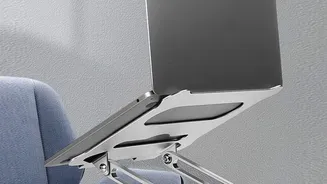
Ergonomics plays a massive role in eye comfort. Your screen should be positioned directly in front of you, about an arm's length away (roughly 50–70 cm). This allows you to see clearly without leaning forward or backward. The height is also critical : the top of your screen should be at or just slightly below your eye level. This encourages a natural , slightly downward gaze of about $10–$20 degrees , which is a relaxed position for your eyes and neck . If you 're using a laptop , this almost always means you need a separate stand to raise the screen and an external keyboard and mouse to maintain this proper posture.