



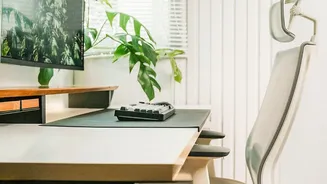
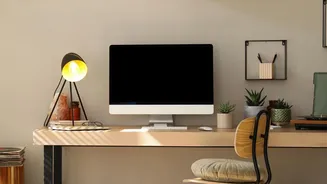
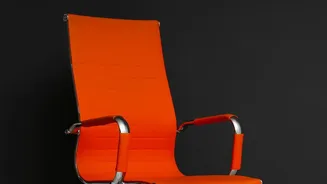
Start with the Foundation: Your Chair Height
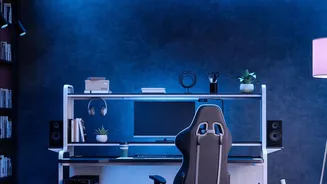
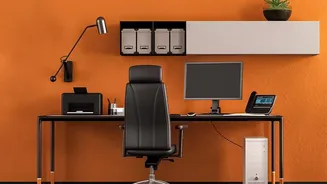
Before you touch anything else, your chair is the absolute foundation of your ergonomic setup. The first and most important adjustment is its height. Sit in your chair and change the height until your feet are resting flat on the floor. Your knees should
be bent at roughly a 90-degree angle, and ideally, your hips should be level with or slightly above your knees. This position creates a stable base, ensures proper blood circulation, and sets the stage for aligning the rest of your body. If your feet can't reach the floor comfortably at the right height for your desk, use a footrest or a sturdy stack of books. Avoid letting your feet dangle or tucking them under the chair, as this immediately compromises your posture.
Dial in Your Spinal Support
With your feet grounded, turn your attention to your back. Most office chairs have some form of lumbar support. Adjust this so it fits snugly into the natural curve of your lower back. It should feel supportive, not like it's pushing you forward. If your chair lacks adjustable support, a rolled-up towel or a small cushion can work wonders to maintain your spine's natural 'S' curve. Next, consider the seat depth. You should be able to sit all the way back, with your back against the backrest, while leaving a small gap of about two to three fingers' width between the edge of the seat and the back of your knees. This prevents the seat from cutting into your legs and restricting circulation.
Position Your Monitor for a Neutral Neck
Now that your lower body and back are properly supported, it's time to align your monitor to prevent neck strain. A monitor that's too low forces your head forward and down—a posture often called "tech neck"—which dramatically increases the load on your spine. A monitor that is too high can cause you to tilt your head back. The goal is a neutral neck, where your ears are aligned over your shoulders. A great starting point is to position your monitor so the top edge of the screen is at or just slightly below your eye level. This allows your eyes to have a slight downward gaze of about 15 to 20 degrees when you look at the center of the screen, which is a more natural and relaxed position.
Set the Right Viewing Distance
Monitor height is only half the battle; distance is just as crucial. If the screen is too far, you’ll find yourself leaning forward to read small text, defeating all the postural work you've done. If it's too close, it can cause eye strain. The general rule of thumb is to place your monitor about an arm's length away. Sit back in your chair and extend your arm; your fingertips should just about be able to touch the screen. For larger monitors (over 27 inches), you may need to position them slightly further back. Your primary monitor should always be placed directly in front of you to avoid twisting your neck for long periods.
Complete the System: Arms, Wrists, and Breaks
With your chair and monitor set, look at your arms. When typing, your elbows should be at roughly a 90-degree angle, with your forearms parallel to the floor. Adjust your chair's armrests to support this, ensuring your shoulders remain relaxed and not hunched. Your keyboard and mouse should be close enough to prevent reaching. But remember, ergonomics is not just about a static position. Even a perfect setup becomes harmful if you don't move. Your body is designed for motion. Make it a point to stand up, stretch, and walk around for a few minutes at least once every hour. These small breaks reset your posture and prevent the stiffness that comes from sitting still for too long.