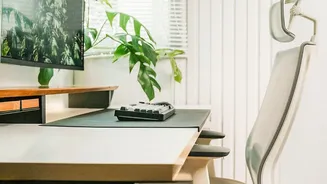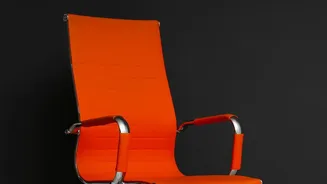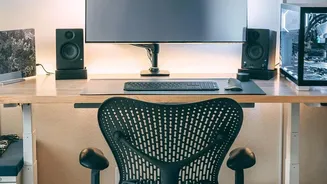





The Foundation: Your Chair Height and Depth
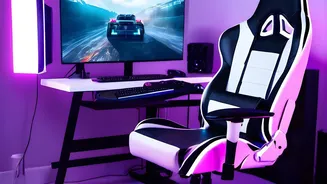
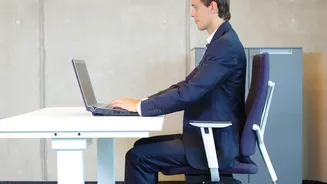
Everything starts with how you sit. Your chair is the foundation of a pain-free workday, and its height is the most critical first step. Adjust your seat so that your feet rest flat on the floor, with your thighs roughly parallel to the ground. Your knees
should be at about a 90-degree angle and level with or slightly below your hips. If your feet dangle, use a footrest or a sturdy stack of books. This position stabilizes your posture and distributes your weight evenly, taking pressure off your lower spine. Next, adjust the seat depth. You should be able to sit all the way back, with your back touching the backrest, while leaving a small gap of about two to three fingers' width between the front edge of the seat and the back of your knees. This prevents the seat from cutting off circulation to your legs.
Support Your Spine: Mastering the Backrest
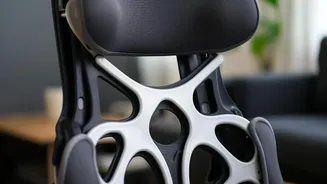
Your spine has a natural S-shaped curve, and the goal of an ergonomic chair is to maintain it, not flatten it. The most important feature for this is the lumbar support, which should fit snugly into the curve of your lower back, roughly at your belt line. This support prevents you from slouching, a habit that puts immense strain on your spinal discs. If your chair has adjustable lumbar support, position it so it feels supportive but doesn't push you forward. If your chair lacks this feature, a rolled-up towel or a small cushion can work wonders to fill that gap. The backrest angle should also be adjusted to a comfortable recline of about 100 to 110 degrees, which reduces pressure on your spine more effectively than sitting rigidly upright at 90 degrees.
Set Your Sights: Monitor Height and Position
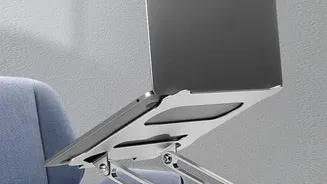
Hunching forward to see your screen is a primary cause of neck and upper back pain. The rule is simple: the top of your monitor should be at or just slightly below your eye level when you're sitting upright. This allows you to look slightly downward to view the center of the screen, which aligns with your eyes' natural resting gaze. If you wear bifocals, you may need to lower your monitor an extra inch or two to avoid tilting your head back. If your monitor is too low, use a monitor stand or a stack of sturdy books to raise it. If it's too high, you may need to adjust your chair height accordingly and use a footrest. This single adjustment prevents the forward head posture that strains your neck muscles.
Keep a Healthy Distance: Monitor Placement
Besides height, the distance to your monitor is also crucial for preventing both eye strain and poor posture. A good rule of thumb is to place your monitor about an arm's length away from you. This is typically between 20 and 40 inches. This distance allows you to see the entire screen clearly without leaning forward or backward. The monitor should be placed directly in front of you, not off to one side, to prevent you from twisting your neck. For a final touch, tilt the screen slightly upward (about 10 to 20 degrees) to align with your line of sight, which can further reduce neck strain and glare.
Final Touches: Armrests and Movement
Armrests aren't just for resting; they play a key role in reducing strain on your shoulders and neck. Adjust them so your arms can rest gently with your shoulders relaxed and your elbows bent at a comfortable angle of around 90 degrees. Your wrists should be in a neutral, straight position when typing. Finally, remember that even the most perfect ergonomic setup can't replace the need for movement. The human body isn't designed for static positions. Make it a habit to stand up, stretch, and walk around for a few minutes every 30 to 60 minutes. These small breaks improve circulation, relieve muscle stiffness, and give your spine a much-needed reset.