


That frustrating reflection staring back at you from your laptop screen is more than just an annoyance; it causes eye strain and headaches. Fortunately, you can reclaim your screen with a few simple adjustments, from software tweaks to a smarter setup.
Start With Your Built-In Display Settings
Your first line of defence against glare is built right into your laptop. Before you buy anything, dive into your system settings. Manually increasing the screen brightness can sometimes counteract the reflections from bright ambient light. Conversely, if you're in a dim room, lowering the brightness to match your surroundings can increase comfort. Don't stop at brightness; adjusting contrast can also make text easier to read. Many operating systems, including Windows, offer high-contrast themes designed to improve visibility. Also, look for a 'Night Light' or 'Eye Saver Mode'. These features reduce blue light and shift the screen to a warmer colour temperature, which can make viewing feel less harsh, especially in the evening. Some systems even feature adaptive brightness that automatically adjusts based on ambient light, though manual control is often necessary for severe glare.
Control Your Physical Environment
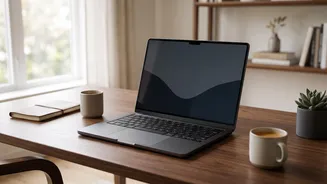
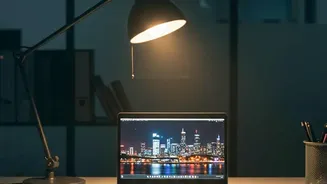
Often, the problem isn't your screen but the light hitting it. The most effective environmental change is to control your positioning relative to light sources. Avoid sitting with your back to a window, as this creates direct reflections. The ideal setup is to place your desk so that the primary light source, like a window, is to the side, at a 90-degree angle to your screen. If you can't move your desk, use blinds or curtains to diffuse or block harsh sunlight. Overhead lighting can be just as problematic. Try to avoid sitting directly under a bright light. If possible, use softer, indirect ambient lighting or a focused task lamp that illuminates your desk without shining on the screen. Even your clothing can make a difference; dark-coloured clothes reflect less light onto your screen than light-coloured ones.
Improve Your Ergonomic Setup
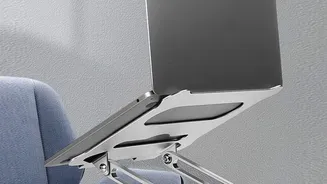
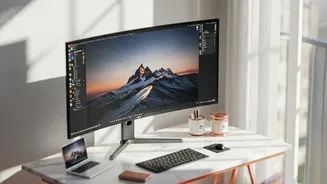
How you sit and position your laptop can significantly impact glare and overall comfort. Your screen should be about an arm's length away, with the top of the monitor positioned at or slightly below your eye level. This encourages a slight downward gaze, which can reduce the screen surface area that catches reflections from ceiling lights. Tilting the screen slightly can also redirect reflections away from your line of sight. If you use a laptop, its design often forces a trade-off between correct screen height and keyboard position. To solve this, use a laptop stand to elevate the screen to eye level and connect an external keyboard and mouse. This allows you to maintain a healthy posture while optimising the screen angle for minimal glare.
Invest in an Anti-Glare Screen Protector
If environmental and setting adjustments aren't enough, a physical accessory can be a game changer. Anti glare screen protectors are one of the most effective solutions. These films have a matte finish that diffuses reflected light instead of bouncing it directly back at you, which significantly reduces distracting reflections. They are an affordable and easy to apply option for most laptops, including those with glossy screens that are highly susceptible to glare. In addition to reducing glare, these protectors often provide the added benefit of protecting your screen from scratches and fingerprints. Some even incorporate blue light filtering technology to further reduce eye strain. If you work in public spaces, you can also find privacy filters that combine anti glare properties with a restricted viewing angle.
Matte vs. Glossy: A Note for Your Next Laptop
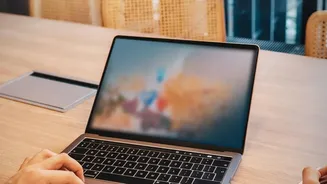
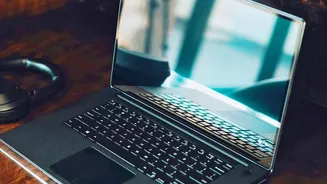
When you're in the market for a new laptop, the type of screen finish is a crucial consideration for preventing glare. Screens generally come in two types: glossy and matte. Glossy screens tend to make colours appear more vibrant and blacks deeper, but they act like mirrors in bright environments. Matte screens have a builtin anti glare surface that scatters ambient light, making them far better for use in offices with overhead lighting, near windows, or outdoors. While a matte finish can sometimes make the image appear slightly less sharp or vibrant compared to a glossy one, the reduction in eye strain and distraction is a significant advantage for most work environments. For everyday productivity, a matte screen is typically the more comfortable and practical choice.