

Build from the Ground Up: Your Chair
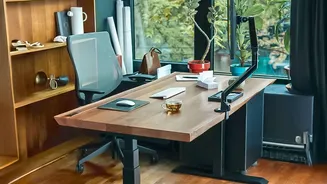
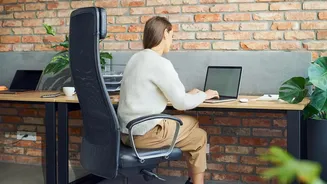
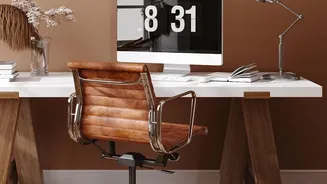
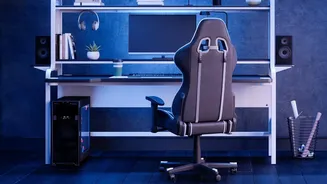
Everything starts with your chair. Before you touch your keyboard or monitor, ensure your primary support is working for you, not against you. Adjust the height so your feet rest flat on the floor, with your knees bent at roughly a 90-degree angle and
level with or slightly lower than your hips. Sit back fully in the chair so your lower back is supported by the lumbar curve. If your chair has armrests, adjust them so your shoulders can relax and your elbows rest gently at about a 90-degree angle. This foundational posture reduces strain on your spine and sets the stage for the rest of your ergonomic setup.
Find Your Screen's Sweet Spot
Staring at a poorly placed monitor is a direct route to neck pain and eye strain. Position your monitor directly in front of you, about an arm's length away. The top of the screen should be at or just slightly below your eye level. This allows you to look straight ahead without tilting your head up or craning your neck down. If you wear bifocals, you may need to lower the monitor an extra inch or two for comfortable viewing. For laptop users, this posture is nearly impossible without help; using a laptop stand or even a stack of books to elevate the screen to eye level is crucial. Pair it with an external keyboard and mouse to complete the setup.
Align Your Keyboard and Mouse
Your hands and wrists do a lot of work, so give them a comfortable position. Place your keyboard and mouse on the same surface, close enough that you can use them with your elbows bent at that same 90-degree angle, close to your body. Your wrists should be straight and in a neutral position, not bent up or down. Many standard desks are actually too high for proper typing, which forces you to raise your shoulders or bend your wrists. If this is the case, a keyboard tray can be an effective solution to lower your typing surface. Keep your mouse close to the keyboard to avoid constantly reaching, which can strain your shoulder.
Let There Be (Good) Light
Lighting is a surprisingly critical part of an ergonomic setup, primarily to prevent eye strain and headaches. The goal is to illuminate your space without creating distracting glare on your screen. Whenever possible, position your desk so that windows are to the side, not directly in front of or behind your monitor. Use blinds to control intense sunlight. Avoid having a bright lamp or overhead light in your direct line of sight. Instead, opt for soft, ambient lighting and a separate, adjustable task light to illuminate documents without casting reflections on your screen.
Clear the Clutter, Clear Your Mind
A cluttered desk can lead to a cluttered mind, but it can also cause physical strain. When your workspace is disorganized, you may find yourself reaching, twisting, and holding awkward positions to grab frequently used items. Keep essential tools like your phone, stapler, or notepad within easy arm's reach to minimize reaching. Use simple organizers for pens and papers to keep your primary work area clear. This not only reduces physical strain but also minimizes distractions, allowing you to focus more effectively on the task at hand.
The Best Position Is Your Next Position
Even a perfectly ergonomic desk is not an excuse to stay still for eight hours. Your body is designed to move. The most important ergonomic habit is to change your posture frequently. Take short breaks at least once an hour to stand up, stretch, and walk around. To combat eye strain, practice the 20-20-20 rule: every 20 minutes, look at something 20 feet away for 20 seconds. These small movements prevent your muscles from becoming stiff and fatigued, keeping you feeling fresh and alert throughout the day.