





Start with Your Foundation: The Chair
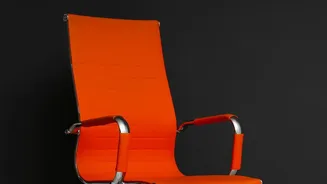
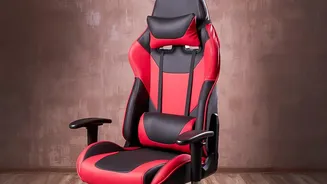
Before you touch your monitor, your chair must be set correctly. The goal is to create a stable and supportive base for your entire body. Start by adjusting the seat height so your feet can rest flat on the floor with your knees bent at roughly a 90-degree
angle. If your feet dangle, use a footrest. Your hips should be level with or slightly higher than your knees. Next, adjust the seat depth. Sit all the way back, pressing your hips against the backrest. There should be a gap of about two to three fingers between the front edge of the seat and the back of your knees. This prevents the seat from cutting off circulation. If your chair is too deep, use a cushion or lumbar pillow to fill the space.
Dial In Your Lumbar and Back Support
Proper back support is crucial for maintaining your spine's natural 'S' curve and preventing slouching. Adjust your chair's lumbar support so it fits snugly into the curve of your lower back, roughly around your belt line. It should feel supportive, not forceful or pushy. If your chair lacks built-in adjustable support, a rolled-up towel or a dedicated lumbar pillow can be an effective substitute. You shouldn't sit rigidly upright at 90 degrees all day; experts suggest a slightly reclined posture of 100-110 degrees can reduce pressure on your spinal discs. The key is to change positions, so use your chair's recline feature periodically.
Positioning Your Monitor for Neck Health
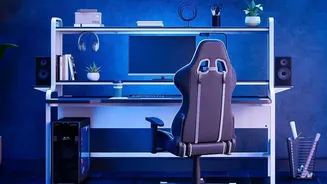
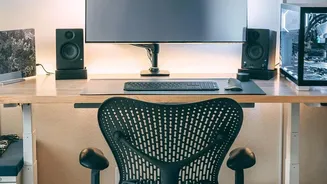
Once your body is properly seated, it's time to position your monitor. A poorly placed screen is a primary cause of neck and shoulder strain. As a general rule, the top of the monitor screen should be at or slightly below your eye level. This allows you to view the screen without tilting your head up or craning your neck down. If you wear bifocals or progressive lenses, you may need to position the monitor slightly lower to find a comfortable viewing angle without tilting your head back. The monitor should be placed directly in front of you to avoid twisting your neck.
Finding the Right Screen Distance and Angle
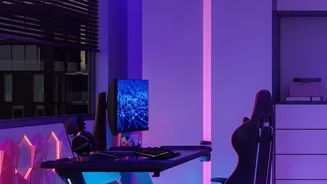
Monitor distance is just as important as height. Position the screen about an arm's length away, which is typically 20 to 30 inches. You should be able to see the entire screen clearly without leaning forward or squinting. If you have a larger monitor (27 inches or more), you may need to place it slightly farther back. Also, consider glare. Position your monitor so that light from windows or overhead fixtures doesn't reflect off the screen, which can cause eye strain and force you into awkward postures. This often means placing your screen at a right angle to the primary light source.
Aligning Your Keyboard, Mouse, and Arms
Your arms and wrists are the final piece of the ergonomic puzzle. Position your keyboard and mouse close to you so you can use them with relaxed shoulders. Adjust your chair's armrests so they gently support your elbows, allowing your shoulders to relax. Your elbows should be bent at a roughly 90-degree angle and positioned close to your body. Your wrists should remain in a straight, neutral position while typing, not bent up or down. If your desk has a hard edge, using a padded palm support can help prevent pressure on your wrists.
The Best Posture Is Your Next Posture
Even the most perfect ergonomic setup cannot protect you from the negative effects of staying in one position for too long. The key to avoiding stiffness and pain is frequent movement. Make it a habit to get up, stretch, and walk around for a few minutes every 30 to 60 minutes. You can also practice the 20-20-20 rule to reduce eye strain: every 20 minutes, look at something 20 feet away for at least 20 seconds. These small breaks reset your posture and give your muscles a chance to recover.