





Ever cranked up your laptop’s brightness to full, only to find yourself squinting in discomfort? You’re not alone. The brightest setting isn’t always the best. The key to eye comfort isn’t just about how bright your screen is, but how it relates to the world
around you.
The Problem with 'Maximum' Brightness
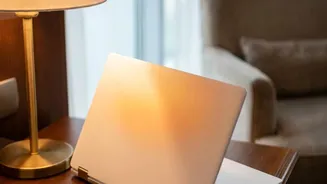
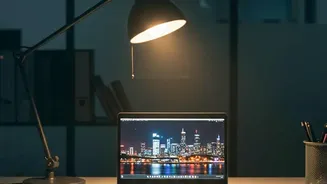
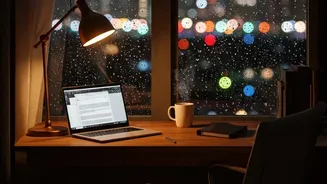
The main reason maximum brightness feels harsh is the dramatic contrast it creates with your surrounding environment. Our eyes are constantly adjusting to the light levels around us. When your screen is significantly brighter than the room you're in, your pupils are forced to constrict every time you look at the screen and dilate when you look away. This constant adjustment, repeated hundreds or thousands of times a day, is a major cause of eye fatigue, a key symptom of what's known as Computer Vision Syndrome or Digital Eye Strain. The goal isn't to have the brightest screen, but a screen that is in harmony with your ambient light.
What Are Nits and Why Do They Matter?
When you look at laptop specifications, you'll see brightness measured in 'nits'. A nit is a unit of luminance, technically defined as one candela per square metre (cd/m²). In simple terms, it tells you how much light a screen can put out. A typical indoor laptop screen might have a brightness of 250 to 400 nits. While a higher nit count means a screen can get brighter—which is useful for working outdoors in direct sunlight—it doesn't mean you should use that peak brightness indoors. For most indoor environments, a setting between 200 and 350 nits is often sufficient and more comfortable.
It's All About Matching Your Environment
The golden rule for eye comfort is to match your screen's brightness to the ambient light in your room. A simple and effective test is to hold a plain white sheet of paper next to your screen. If your screen looks like a light source glowing beside the paper, it’s too bright. If the paper looks significantly brighter than your screen, your display is likely too dim, forcing you to strain. You want the white on your screen to be as close as possible to the white of the paper. This simple adjustment ensures your eyes don't have to work overtime to deal with conflicting light levels.
The Role of Blue Light
Brighter screens emit more of everything, including high-energy blue light. While current research suggests blue light from consumer electronics is unlikely to cause permanent eye damage, it is linked to digital eye strain and can disrupt your sleep cycle. Exposure to blue light, especially in the evening, can suppress the production of melatonin, the hormone that tells your body it's time to sleep. Lowering your screen's brightness at night reduces the total amount of blue light you're exposed to, which can help mitigate these effects.
Use the Tools Your Laptop Already Has
Modern operating systems come with built_in features to help manage brightness and colour for better eye comfort. Many laptops have an ambient light sensor and a feature called 'adaptive brightness', which automatically adjusts the screen's luminance based on your surroundings. You can also use 'Night Mode' features, such as 'Night Shift' on macOS or 'Night Light' in Windows. These functions do more than just lower brightness; they reduce the amount of blue light by shifting the screen to warmer, yellower tones in the evening, which is considered more effective for reducing eye strain and protecting sleep quality than just dimming the screen alone.
Simple Habits for Better Eye Health
Beyond brightness, a few other habits can significantly reduce eye strain. Remember to follow the '20–20–20 rule': every $ twenty minutes$, take a $ twenty$-second break to look at something at least $ twenty$ feet away. This gives your eye muscles a much–needed rest. Also, make a conscious effort to blink more often. When we stare at screens, our blink rate can drop by half, leading to dry, irritated eyes. Finally, ensure your screen is positioned about an arm’s length away, with the top of the screen at or just below eye level to maintain a comfortable posture.