






The Link Between Your Screen and Spine
The human head is surprisingly heavy, and your neck muscles are tasked with supporting it all day. When your monitor is too low, you naturally tilt your head down, forcing those muscles into a constant state of tension. This forward-head posture can lead
to chronic neck pain, stiffness, and even tension headaches. Similarly, if your screen is too high, you'll crane your neck upwards, straining a different set of muscles and joints. This misalignment doesn't stop at the neck. To compensate for a poorly positioned screen, you might hunch your shoulders or slouch, which rounds your lower back and puts immense pressure on your lumbar spine. Over time, this poor posture can contribute to significant lower back discomfort and even more serious spinal issues.
The Eye-Level Rule for Monitor Height
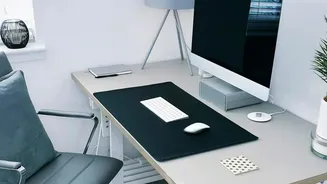
The single most effective change you can make is adjusting your monitor's height. The guiding principle is simple: the top of your screen should be at or slightly below your eye level when you are sitting up straight. This allows your eyes to naturally gaze slightly downwards towards the center of the screen, which is their resting position. This neutral neck position prevents you from tilting your head up or down. If your monitor isn't adjustable, don't worry. A stack of sturdy books or a dedicated monitor riser can achieve the same result quickly and effectively. The goal is to eliminate the need to look down, immediately relieving the primary source of strain on your neck.
Finding the Right Distance
Height is only half the battle; distance matters too. Your monitor should be positioned about an arm's length away from your eyes. A good way to check this is to sit in your chair and extend your arm—your fingertips should just about touch the screen. If the monitor is too close, you risk eye strain. If it's too far, you’ll likely find yourself leaning forward and squinting to read the text, which defeats the purpose of good posture and reintroduces neck and back strain. For larger monitors (above 27 inches), you may need to position them slightly further back to see the entire screen comfortably without turning your head.
Perfecting the Angle
Once you have the height and distance correct, a final small tweak to the angle can make a big difference. Your monitor should be tilted back slightly, around 10 to 20 degrees. This slight angle aligns with your natural downward gaze and can also help to reduce glare from overhead lights or windows, which can cause you to contort your body into awkward positions to see the screen clearly. If you wear bifocal or progressive lenses, you may need to lower your monitor a bit more and increase the backward tilt to avoid tilting your head back to see through the correct part of your glasses.
A Holistic View of Your Workspace
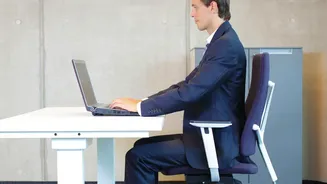
While the monitor is a key player, it works as part of a team. To truly combat discomfort, ensure your chair provides good lumbar support, either through its design or with a small cushion. Your feet should be flat on the floor with your knees at roughly a 90-degree angle. Your keyboard and mouse should be positioned so that your elbows are also at a relaxed, open angle (around 90-110 degrees) and your wrists are straight. Finally, remember to move. No posture is a good posture if held for too long. Taking short breaks every 30 minutes to stand, stretch, and walk around is crucial for reducing muscle tension and stiffness.