


Start with Your Chair: The Foundation
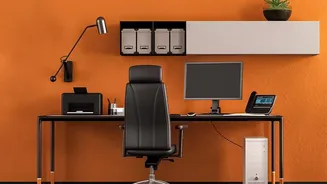
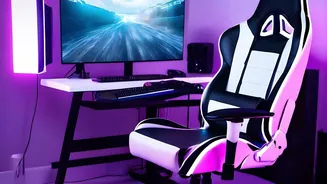
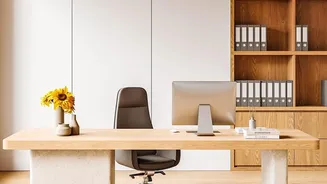
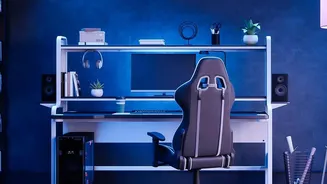
Before you touch your monitor or keyboard, your chair is the first and most critical piece to get right. It’s the foundation of a pain-free setup. Start by adjusting the height so your feet rest flat on the floor with your thighs approximately parallel
to it. Your knees should be at or slightly below the level of your hips. Push your hips back as far as they can go in the chair to ensure your lower back is making contact with the lumbar support. This support should fit into the natural curve of your spine. Finally, adjust the armrests so your shoulders are relaxed and your elbows can rest at a roughly 90-degree angle. Proper chair setup distributes your weight evenly and supports a healthy posture from the ground up.
Position Your Keyboard and Mouse
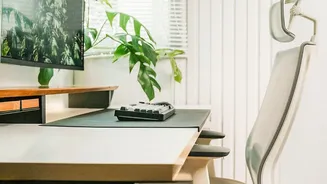
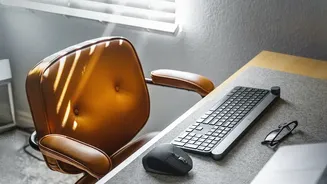
With your chair set, turn your attention to your keyboard and mouse. Both should be positioned at or just below your resting elbow height, allowing your arms to form that 90-degree angle. Your wrists should remain straight and in a neutral position, not bent up or down while typing. Keep your keyboard and mouse close to your body to avoid reaching, which can strain your shoulders and arms. Ideally, the mouse should sit right next to your keyboard on the same level surface. If you find yourself constantly stretching or twisting to reach your equipment, you're putting unnecessary stress on your joints. Bringing everything within a comfortable distance allows you to use your chair's backrest properly and maintain a relaxed posture.
Set Your Monitor Height and Distance
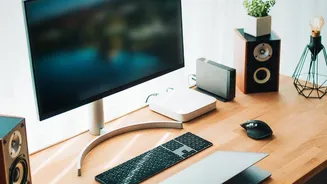
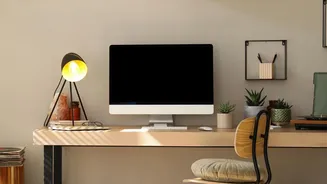
Now for the most common culprit of neck pain: the monitor. The rule is simple: the top of your screen should be at or slightly below your eye level. This allows your eyes to look slightly downward, which is their natural resting gaze. Position the monitor about an arm's length away from you—typically 20 to 30 inches—so you can see the entire screen clearly without leaning forward or squinting. If you have a larger screen, you may need to place it a bit farther back. To reduce glare and further ease neck strain, tilt the monitor back slightly, around 10 to 20 degrees. If you wear bifocals, you might need to lower your monitor an extra inch or two for comfortable viewing.
Fine-Tune with Essential Accessories
Even with the main components in place, small accessories can make a big impact. If your feet don't rest flat on the floor after adjusting your chair, a footrest is a crucial addition to provide support and maintain the correct knee angle. If you're working on a laptop, its fixed screen and keyboard make proper ergonomics nearly impossible on their own. Elevate it on a stand or a stack of books to get the screen to eye level, and use a separate, external keyboard and mouse. This lets you position the screen and typing tools independently for optimal posture. Finally, consider your lighting. Position your desk so that windows are to the side, not directly in front or behind your screen, to minimize eye-straining glare.
The Most Important Tip: Keep Moving
An ergonomically perfect workstation is only half the battle. Your body isn't designed to stay in one position for eight hours a day, no matter how well-supported it is. The best posture is your next posture. Make it a habit to take frequent movement breaks. Stand up, stretch, and walk around for a few minutes at least once an hour. A popular guideline is the 20-20-20 rule: every 20 minutes, look at something 20 feet away for 20 seconds to give your eyes a break from screen fatigue. Even small movements like shoulder rolls and neck stretches at your desk can help relieve muscle tension. Combining a proper setup with regular movement is the ultimate key to preventing desk-related pain.