
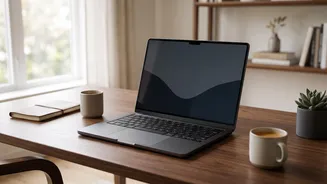

Adjust Brightness to Your Environment
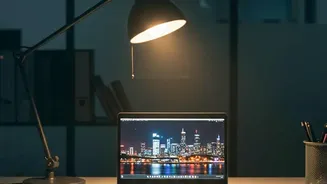
The first rule of screen comfort is to match your screen's brightness to the light around you. A screen that's much brighter than your surroundings forces your eyes to work harder, while a screen that's too dim can cause you to squint and strain. As a general
guide, if your screen looks like a light source in the room, it's too bright. If it seems dull and grey, it's too dark. Most operating systems have easy-to-access brightness controls, and many now feature 'adaptive brightness' that adjusts automatically based on your ambient light.
Position Your Screen for Comfort
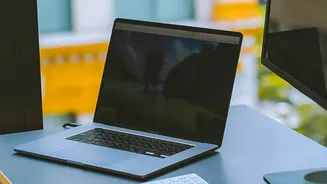
Good ergonomics are crucial for preventing both eye and neck strain. Position your laptop so the screen is about an arm's length away from your eyes—roughly 20-28 inches. The top of the screen should be at or just slightly below your eye level. This allows you to look slightly downward at the middle of the screen, which is a more natural and relaxed position for your eyes and neck. If you're using a laptop on its own, this is difficult to achieve, so consider using a separate keyboard and mouse with a laptop stand to elevate the screen to the correct height.
Follow the 20-20-20 Rule
Your eyes aren't designed to focus on a single, close-up object for hours on end. To combat focus fatigue, practice the 20-20-20 rule. Every 20 minutes, take a 20-second break to look at something at least 20 feet away. This simple exercise allows the focusing muscles inside your eyes to relax, which can significantly reduce strain and discomfort. Set a timer on your phone or use a simple app to remind you until it becomes a habit. It's one of the most effective, cost-free ways to manage digital eye strain.
Tweak Your Display Beyond Brightness
Brightness is just one part of the equation. Increasing the text size and contrast can also make reading much more comfortable, reducing the need to squint. Additionally, consider adjusting the colour temperature of your screen. Most devices now have a 'Night Light' or 'Night Shift' setting that reduces the amount of blue light and gives the screen a warmer, yellowish tint. While evidence is mixed on whether blue light itself causes eye strain, many users find that warmer screen tones are easier on the eyes, especially during evening hours.
Don't Forget to Blink
It sounds almost too simple, but consciously blinking more often can make a huge difference. When we stare at screens, our blink rate can drop by half or more, from about 12–15 times a minute to as few as 5. Blinking is how your eyes stay moist and clean. A lower blink rate leads to dry, irritated, and tired eyes. If your eyes frequently feel dry, you can also use over–the–counter artificial tears to help keep them lubricated. Making an effort to blink fully and frequently is a key part of the screen–comfort puzzle.
Minimize Screen Glare
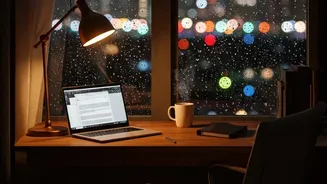
Glare from windows or overhead lights reflecting off your screen can be a major source of eye strain. Position your laptop so that light sources are to the side, rather than directly in front of or behind your screen. If you can’t change your desk setup, try closing the blinds or adjusting the angle of your screen. For laptops with glossy screens, which are particularly prone to reflections, an anti–glare screen protector can be a worthwhile investment to diffuse reflections and improve readability.