


The Problem with 'Too Bright' or 'Too Dim'
Digital eye strain, or Computer Vision Syndrome, includes a range of symptoms like headaches, blurry vision, and general eye fatigue. One of the biggest culprits is improper screen brightness. When your screen is significantly brighter than your surrounding
environment, it essentially becomes a glaring light source, forcing your eye muscles to work harder to focus. Conversely, if your screen is too dim, you'll find yourself squinting to read text, which also causes strain. The key is to find a balance where your screen illuminates the content without becoming an overpowering beacon or a faint whisper.
Finding the Right Balance
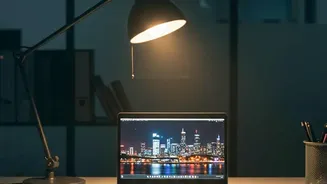
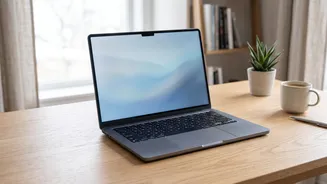
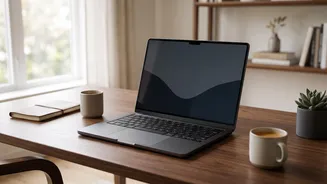
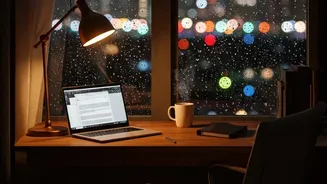
The goal is to match your screen's brightness to the ambient light in your room. A simple rule of thumb is that your screen should not be the brightest or dimmest source of light you can see. For typical indoor office or home lighting, a brightness level of around 250 to 350 nits (a standard measure of brightness, also called cd/m²) is often recommended. In a dimly lit room, you'll want to lower that to around 120 to 180 nits to avoid harsh contrast. A practical way to test this is to open a blank white document. If it looks like a light source in the room, it's too bright. If it appears dull and grey, it's likely too dim. Your screen should blend in seamlessly with your surroundings.
Don't Forget About Blue Light
Beyond general brightness, the type of light your screen emits also matters. Digital displays produce a high amount of blue light, which has a short, high-energy wavelength. This type of light can contribute to eye strain and, more significantly, disrupt your natural sleep cycle by suppressing melatonin production. Most modern laptops and operating systems have built-in features to combat this, often called 'Night Shift' (on Apple devices) or 'Night light' (on Windows). These functions automatically shift the screen's colour temperature towards warmer, yellower tones in the evening, which is easier on the eyes and less likely to interfere with your sleep. Using these features is a simple and effective way to increase evening comfort.
Automate for Effortless Comfort
Manually adjusting your brightness every time the sun goes behind a cloud is impractical. Thankfully, most modern laptops come with an 'adaptive brightness' or 'auto-brightness' feature. Using a built-in light sensor, the laptop automatically adjusts the screen's luminance based on the lighting conditions of your environment. This ensures the screen gets brighter in a sunny room and dimmer in a dark one without you having to touch the settings. While sometimes imperfect, especially with rapid light changes, enabling this feature is generally a great way to maintain a comfortable viewing experience throughout the day.
More Than Just Brightness: Complete Eye Care
Adjusting brightness is crucial, but it's only one piece of the puzzle. To truly combat digital eye strain, incorporate other healthy habits. The most famous is the 20-20-20 rule: every 20 minutes, take a 20nd break to look at something at least 20 feet away. This simple exercise allows your eye muscles to relax. Furthermore, pay attention to ergonomics. Position your screen at least an arm's length away, with the top of the monitor at or just below eye level to maintain a neutral neck position. Using an external keyboard and mouse can also help you achieve a more comfortable posture instead of hunching over your laptop. Finally, make a conscious effort to blink more often, as we tend to blink less when staring at screens, which leads to dry, irritated eyes.