




If you spend hours on a laptop, you know the feeling: tired, gritty eyes and a nagging headache. Digital eye strain is common, but you don't have to accept it. Simple adjustments to your screen's distance and brightness can make a world of difference.
The Arm's Length Rule
One of the easiest principles for eye comfort is the arm's length rule. Sit comfortably and extend your arm straight out towards your screen. Your fingertips should just about touch the display. This distance, typically between 50 and 75 cm, allows your eyes to focus without excessive effort. If you find yourself leaning in to read text, resist the urge to move the laptop closer. Instead, increase the font size in your device's settings. This ensures you maintain a healthy posture and reduce strain on both your eyes and neck.
Match Your Screen to the Room
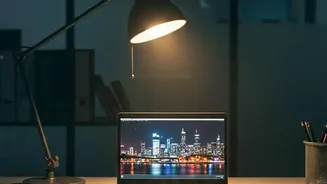
Your screen should never be a lone beacon of light in a dark room or a dim panel in a bright one. The key is to match your screen’s brightness to the ambient light around you. If your screen is significantly brighter than your surroundings, it can cause glare and force your eyes to work harder. Conversely, a screen that is too dim can cause you to squint and strain. Many devices have an auto-brightness feature, which is a good starting point, but manually adjusting it to find your personal comfort zone is often best. For a typical office environment, a brightness level of around 40% to 60% often works well.
Position for Perfect Posture
Distance and brightness are only part of the ergonomic puzzle. The height and angle of your screen are also crucial. Ideally, the top of your laptop screen should be at or slightly below your eye level. This allows you to look slightly downward, at about a 15 to 20-degree angle, which is a more natural and relaxed position for your neck and eyes. Because a laptop's screen and keyboard are connected, achieving this ideal height usually requires a laptop stand or even a stack of books. Using an external keyboard and mouse with this setup will prevent you from raising your shoulders and wrists into an uncomfortable typing position.
Follow the 20-20-20 Rule
Staring at a close up screen for long periods fatigues the focusing muscles in your eyes. To combat this, practice the 20ndary rule. Every 20 minutes, take a 20ndary break to look at something at least 20 feet (or 6 metres) away. This simple exercise allows your eye muscles to relax, helping to prevent the headaches and blurred vision associated with digital eye strain. Set a timer or use an app to remind you until it becomes a habit. It’s one of the most effective strategies for maintaining eye comfort during a long workday.
Beyond the Basics : More Eye - Saving Tips
A few other adjustments can further enhance your visual comfort. Remember to blink! People tend to blink about a third less often when staring at screens, which leads to dry, irritated eyes. Make a conscious effort to blink more frequently. Also, manage glare by positioning your laptop so that windows or bright lights are to the side, not directly in front of or behind your screen. In the evenings, use your device’s 'Night Light' or 'Eye Comfort Shield' setting. These features reduce blue light and shift the screen to a warmer color temperature, which can be easier on the eyes and may help regulate your sleep cycle.