







That nagging ache in your lower back after a long day at the desk is an all-too-common complaint. While we often blame long hours, the real culprit is frequently our workspace setup. The good news? You don't need an expensive overhaul.
Why Small Adjustments Make a Big Difference
Ergonomics is the
science of designing your workspace to fit you, not forcing your body to fit your workspace. When your setup is even slightly off, your body compensates in ways that create unnecessary strain on muscles and joints. This can lead to poor posture, headaches, neck stiffness, and persistent back pain. The goal is to achieve a 'neutral posture' where your body is aligned and balanced, reducing stress on your spine. The two most powerful changes you can make involve your monitor and your chair—the places where subtle misalignments do the most damage over time.
Mastering Your Monitor Level
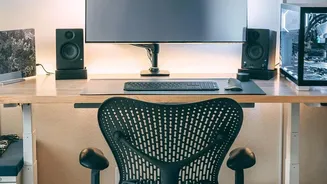
Hunching forward to see your screen is a primary cause of neck and upper back pain. The ideal monitor position helps you maintain a straight neck and relaxed shoulders. To get it right, position the top of your screen at or just slightly below your eye level. This allows you to look slightly down toward the center of the screen, which is a more natural position for your eyes and neck. The monitor should also be about an arm's length away from you; adjust this distance so you can read text clearly without squinting or leaning in. If you use a laptop, propping it up on a stand or a stack of books to raise the screen and using a separate keyboard and mouse is essential for good posture.
Perfecting Your Chair's Lumbar Angle
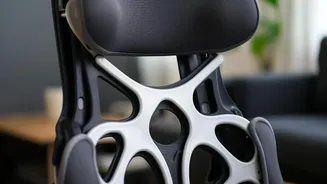
Your chair is your primary defense against lower back pain, but only if it’s adjusted correctly. While many think sitting perfectly upright at a 90-degree angle is ideal, experts suggest this can actually increase pressure on the spine. For general desk work, a slightly reclined backrest angle between 100 and 110 degrees is recommended. This position helps distribute your weight more evenly, reducing the load on your lumbar discs. The key is to ensure the chair’s lumbar support fits snugly into the natural curve of your lower back. If your chair lacks built-in support, a rolled-up towel or a small cushion can work wonders. Your goal is to feel supported without slouching, allowing your spine to maintain its natural 'S' curve.
Fine-Tuning the Rest of Your Setup
Once your monitor and backrest are set, a few final tweaks can complete your ergonomic transformation. Adjust your chair height so your feet rest flat on the floor, with your knees at or slightly below hip level. If your feet dangle, use a footrest. Your armrests should be set so your shoulders are relaxed and your elbows bend at roughly 90 degrees. Your keyboard and mouse should be close enough that you can use them with straight wrists and elbows near your body. Keeping your forearms parallel to the floor helps prevent wrist and shoulder strain.
The Most Important Adjustment: Movement
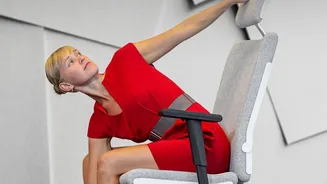
Even the most perfectly ergonomic setup has a weakness: prolonged sitting itself. Static posture is a major risk factor for musculoskeletal issues. Health experts recommend breaking up long periods of sitting by getting up to stand, stretch, or walk around for a few minutes every 30 to 60 minutes. Simple actions like standing up for phone calls or walking over to a colleague instead of sending an email can make a significant difference. Regular movement improves circulation, keeps joints lubricated, and gives your muscles a much-needed break from static loads.