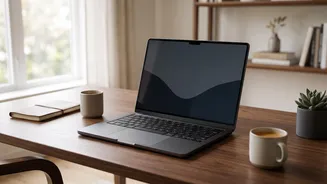

Staring at a laptop for hours can lead to eye strain, headaches, and neck pain. But you don't have to accept discomfort as part of the digital age. Small, strategic adjustments to your setup can make a world of difference for your daily comfort.
Position for Posture and Comfort
Good ergonomics
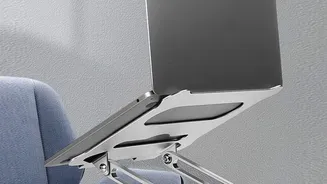
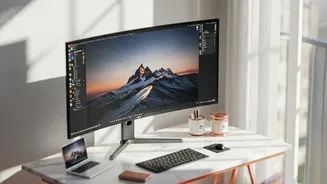
start with proper screen placement. The goal is to keep your neck in a neutral, relaxed position. First, place your laptop about an arm's length away from your face, typically 20 to 28 inches. This distance prevents your eye muscles from working overtime to focus. Next, adjust the height. The top edge of your screen should be at or just slightly below your eye level. This encourages a natural, slight downward gaze, which is less tiring for your eyes and neck. Since a laptop screen is attached to the keyboard, achieving this often requires a laptop stand and an external keyboard and mouse. This setup allows you to elevate the screen to the correct height without compromising your wrist and arm posture.
Conquer Glare from Windows
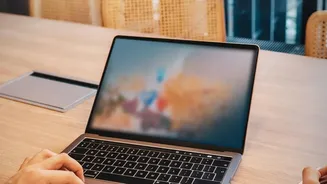
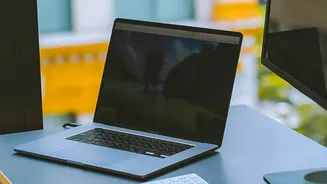
Glare from windows and overhead lights is a primary cause of eye strain, forcing your eyes to constantly adjust between the bright reflection and the content on your screen. The most effective way to combat this is to position your desk so that windows are to your side, not directly in front of or behind you. Sitting with your back to a window will cause direct reflections, while facing a window creates excessive contrast that fatigues your eyes. If moving your desk isn't an option, use blinds or curtains to diffuse the harsh sunlight. For persistent glare, an anti-glare screen protector can be a great solution. These filters scatter reflected light, improving readability. Screens with a matte finish are also inherently better at diffusing reflections than their glossy counterparts, which act more like a mirror.
Calibrate Your Screen Brightness
Your laptop screen should never feel like a light source in the room. The ideal brightness level is one that matches the ambient light of your environment. A simple test is to look at a white background on your screen, like a blank document. If it looks like a lamp, it’s too bright; if it appears dull and grey, it’s too dim. For typical indoor office lighting, a brightness of around 250 to 350 nits (a unit of luminance) is often recommended. You should also adjust the contrast. Setting the contrast between 60% and 70% usually makes text crisp and easy to read without being harsh. Many laptops have an auto-brightness feature that adjusts based on ambient light, which can be a good starting point for finding a comfortable level.
Let Software Ease the Strain
Modern operating systems come with builtin features designed to increase visual comfort, especially in the evening. Settings like 'Night Shift' on macOS or 'Night Light' on Windows reduce the amount of blue light your screen emits, shifting the colour temperature to a warmer, yellowish tone. While blue light from screens has not been shown to cause eye damage, reducing it at night can ease digital eye strain and may help regulate your natural sleep cycle. In a dark room, switching to 'Dark Mode'—which displays white text on a black background—can also reduce glare and feel more comfortable. However, in a bright room, a traditional blackonwhite display is often easier on the eyes. Some people with astigmatism may also find dark mode more difficult to read due to a visual effect called halation, where letters can appear to bleed into the dark background.
Essential Habits Beyond the Screen
Even with a perfect setup, your eyes need regular breaks from focusing up close. This is where the 20–20–20 rule comes in. Every 20 minutes, take a 20–second break to look at something at least 20 feet away. This simple exercise allows the focusing muscles inside your eyes to relax, significantly reducing accumulated strain. It's also important to remember to blink. When we concentrate on screens, our blink rate can decrease, leading to dry, irritated eyes. Making a conscious effort to blink fully and frequently helps keep your eyes lubricated. Finally, don't be afraid to increase the font size. If you find yourself leaning in to read, bumping up the text size is an easy fix that reduces visual effort.