

Start with Your Foundation: The Chair
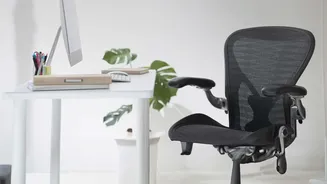
Before you worry about your screen, your chair is the foundation of a healthy posture. The first step is to adjust the seat height. Your feet should be flat on the floor with your thighs roughly parallel to it. If your feet are dangling, your pelvis can
tilt backward, flattening the natural curve of your lower back and causing strain. Next, check the seat depth. Sit with your hips as far back in the chair as they can go. You should be able to fit two or three fingers between the front edge of the seat and the back of your knees. This prevents the seat from cutting off circulation. Finally, adjust the armrests so your shoulders can relax and your elbows form a slightly open angle of 90 to 110 degrees.
Engage Your Core Support: Lumbar Adjustments
Your spine has a natural inward 'S' curve in the lower back, and the goal of lumbar support is to maintain it. A chair's lumbar support should fit snugly into this curve, which is typically located around your belt line. If the support is too high, it can push your ribs forward and cause you to hunch; if it's too low, it can push on your hips. Adjust the height so the most prominent part of the cushion aligns with the small of your back. Many chairs also allow you to adjust the depth or firmness. The goal is to feel gentle, continuous contact that encourages your spine's natural shape without aggressively forcing you to arch. If your chair lacks built-in support, a small pillow or a rolled-up towel can serve as an effective substitute.
Align Your Gaze: Setting Monitor Height
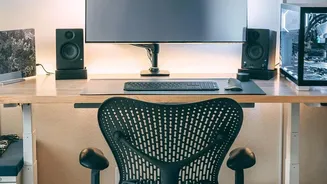
Once your body is properly supported, it's time to position your monitor. A poorly placed screen is a primary cause of neck and upper back strain, as it forces you to tilt your head. The most widely accepted ergonomic rule is to position the monitor so that the top of the screen is at or slightly below your eye level. This allows your head to remain in a neutral, centered position over your shoulders. To check your setup, sit back in your chair, relax your shoulders, and look straight ahead. Your gaze should naturally fall on the top third of the screen without you needing to tilt your chin up or down. If you work on a laptop, you will almost certainly be looking down. Using a laptop stand or even a stack of books to elevate the screen is essential to avoid hunching.
Mind the Distance and Angle
Monitor height is only half of the equation; distance and angle are also critical. Your monitor should be positioned about an arm's length away from you. This distance, typically between 50 and 100 cm, allows you to see the entire screen without leaning forward or squinting, both of which contribute to muscle strain. Glare can also force you into awkward postures, so position your screen at a right angle to windows to minimize reflections. If needed, you can also apply a slight upward tilt to the screen to further reduce glare from overhead lights and improve your viewing angle. For those who wear bifocals, it may be more comfortable to lower the monitor by an extra inch or two.
Movement is the Final Ingredient
Even the most perfectly ergonomic workstation cannot eliminate the stress of sitting for eight hours straight. Static posture is a significant risk factor for musculoskeletal issues. Your body is designed to move. To combat the negative effects of prolonged sitting, make it a habit to change your posture frequently and take regular breaks. Some experts recommend the 20-20-20 rule to reduce eye strain: every 20 minutes, look at something 20 feet away for at least 20 seconds. Others suggest a cycle of sitting, standing, and stretching every half hour. The key takeaway is that your ergonomic setup works best when combined with consistent movement throughout the day.