






The Foundation of a Pain-Free Day: Neutral Posture
The key to preventing desk-related back pain is achieving a “neutral posture.” This is the natural alignment of your body where your joints are not under stress and your muscles are relaxed. When you sit, the goal is to maintain the natural S-curve of your spine.
Slouching forward or hunching over your keyboard forces your spinal ligaments to overstretch and puts immense pressure on the spinal discs, which can lead to chronic pain over time. A proper ergonomic setup isn't about sitting rigidly still; it's about arranging your environment to support this neutral spine effortlessly, reducing muscle fatigue and strain.
Step 1: Master Your Chair Position First
Before you even think about your monitor, your chair is the first priority. Start by adjusting the seat height so your feet rest flat on the floor, with your thighs roughly parallel to the ground. Your knees should be at or slightly lower than your hips, creating a 90 to 100-degree angle. If your feet are dangling, use a footrest. There should be a small gap, about two to three fingers' width, between the back of your knees and the edge of the chair seat. This ensures proper circulation and prevents pressure behind the knees. Sit all the way back in your chair so your spine is making contact with the backrest.
Step 2: Dial In Critical Lumbar Support
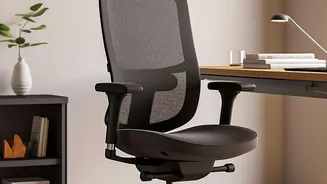
Your lower back has a natural inward curve (the lumbar curve) that requires support. An ergonomic chair should have an adjustable lumbar support that fits into this curve. Your buttocks should be pressed against the back of the chair, allowing the cushion to gently arch your lower back. This simple support is essential for minimizing the strain on your back muscles and spinal discs. If your chair lacks built-in support, a rolled-up towel or a dedicated lumbar pillow can be a very effective substitute to prevent you from slumping as the day wears on.
Step 3: Align Your Monitor to Your Eye Level
With your posture set, it’s time to adjust your monitor. The screen should be positioned directly in front of you, about an arm's length away. The most crucial adjustment is height: the top of the screen should be at or slightly below your eye level. This allows you to view the entire screen by looking slightly downward, without needing to tilt your head up or crane your neck down. An incorrect monitor height is a primary cause of neck, shoulder, and upper back strain. If you work on a laptop, using a separate keyboard and mouse is highly recommended; this allows you to raise the laptop screen to eye level while keeping the keyboard at a comfortable elbow height.
Putting It All Together for Daily Comfort
Once adjusted, your ideal setup should feel natural. Your elbows should be bent at approximately a 90-degree angle, with your wrists straight and forearms parallel to the floor while typing. Your shoulders should be relaxed, not hunched up toward your ears. Don't store items under your desk that restrict leg movement. Remember, the best posture is a dynamic one. Even with a perfect setup, sitting for prolonged periods is unhealthy. Try to stand up, stretch, and walk around for a minute or two every hour to keep your muscles flexible and promote blood circulation.