






Go Beyond a Simple Screenshot
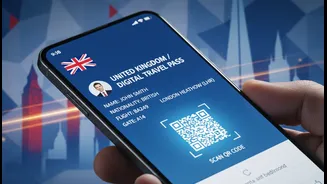
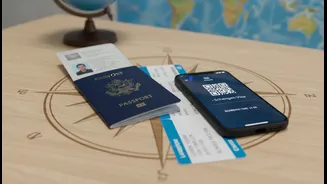
While taking a screenshot of your visa confirmation seems like the easiest solution, it’s often not the best one. Screenshots can be blurry, accidentally cropped, or have a low resolution, making them difficult for airline staff or immigration officers
to read. A low-quality image can lead to delays, extra scrutiny, or even a refusal to board. Instead of a screenshot, save the official PDF document that is usually emailed to you. PDFs are clear, contain all the necessary information in a standard format, and are universally accepted. Name the file clearly—for example, "India_eVisa_August2026.pdf"—and save it in a dedicated travel folder on your phone for easy access.
The Power of the Printout
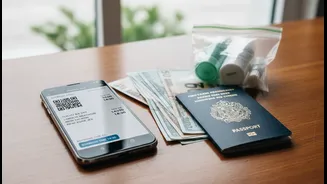
In our digital-first world, carrying paper might seem outdated, but for an e-visa, it can be a trip-saver. Some countries still have a strong preference or even a strict requirement for a physical copy. For instance, Indian authorities explicitly require travellers to present a printed copy of their approved e-visa upon arrival. Digital versions on a phone may not be accepted. Even for destinations where the visa is electronically linked to your passport, like Australia's Electronic Travel Authority (ETA), carrying a printout is highly recommended. Technical glitches, system downtime, or a simple miscommunication can be quickly resolved by presenting a paper document. Pack at least two copies and keep them in separate places, such as your carry-on and your checked luggage.
Diversify Your Digital Storage
Redundancy is your best friend when travelling. Do not rely on a single location for your digital visa. A robust strategy involves storing the file in multiple places to ensure you can access it under any circumstance. First, save the PDF directly to your phone's internal storage or a dedicated files app. Second, upload it to a secure cloud service like Google Drive, Dropbox, or iCloud. This creates a backup that is accessible from any device with an internet connection. Third, email the visa document to yourself. This provides another easily accessible online copy that you can retrieve from a web browser on any computer in an emergency.
Master the Art of Offline Access
An e-visa stored in the cloud is useless if you land in a country with no immediate Wi-Fi or data service. Before you leave home, ensure your digital visa is available for offline viewing. Most cloud storage apps, including Google Drive and Dropbox, have a feature that allows you to select specific files to be made available offline. Simply find your visa file in the app, tap the options menu, and select "Make available offline." This downloads a copy directly to your device, ensuring you can open and display it without needing an internet connection. This single step can prevent a moment of panic at the immigration counter.
Share With a Trusted Contact
For the ultimate peace of mind, create a final layer of backup by sharing your travel documents with someone you trust who is not travelling with you. Send a copy of your passport, flight itinerary, and e-visa to a close family member or friend. In a worst-case scenario where you lose your phone, your luggage, and your printouts, this trusted contact can quickly email you the necessary documents. This simple act of delegation provides a safety net that costs nothing and can be invaluable in a crisis.
Stay Powered and Prepared
Your digital visa is only as reliable as the device it is stored on. A dead phone battery can be just as problematic as not having a visa at all. Invest in a reliable portable power bank and make sure it is fully charged before you head to the airport. Keep your charging cables in your carry-on bag, not in your checked luggage. While waiting at the gate, take the opportunity to top up your phone's battery. A fully charged device not only ensures you can present your visa but also helps you stay connected and manage any other travel-related tasks.