





The Trio of Comfort: A System, Not a Shopping List
Ergonomics is the science of designing your environment to fit you, not forcing your body to fit the environment. When it comes to your desk, this means understanding that your chair, keyboard, and screen function as an interconnected system. Buying an expensive
ergonomic chair won't fix the neck pain caused by a poorly positioned monitor, and a fancy keyboard can't help if your chair is at the wrong height. Each component's position directly affects the others. Getting them to work in harmony is the key to preventing the musculoskeletal issues, fatigue, and discomfort that can build up over time. The goal is to achieve a neutral body position where your joints are naturally aligned, minimising stress on your body.
Start with the Foundation: Your Chair
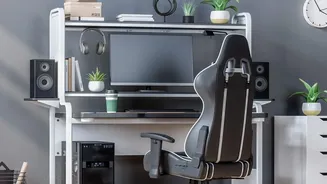
Every adjustment begins with your chair. It's the anchor of your posture. First, adjust your chair's height so your feet rest flat on the floor, with your knees bent at roughly a 90-degree angle. Your hips should be level with or slightly higher than your knees. You should be able to sit all the way back, ensuring your lower back is supported by the chair's lumbar curve. Perching on the edge of your seat eliminates this crucial support. Once your feet and back are set, adjust the armrests so your shoulders are relaxed and your arms rest gently on them. This foundational posture sets the correct height for your interaction with both your desk and keyboard.
The Bridge: Keyboard and Wrists
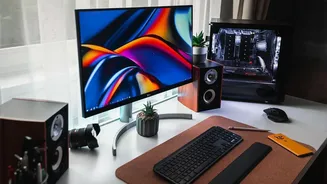
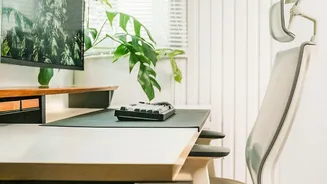
With your chair correctly positioned, your attention moves to the keyboard. Your desk and keyboard should be at a height that allows your elbows to be at about the same level as the keyboard, forming an open angle of 90 degrees or slightly more. Your forearms should be roughly parallel to the floor. This allows you to type with straight, neutral wrists, rather than bending them up or down, which can lead to strain and conditions like carpal tunnel syndrome. The keyboard should be close enough that your upper arms can hang relaxed and close to your body, preventing you from hunching or reaching forward. Your mouse should be on the same level and within easy reach.
The Final Piece: Your Screen and Neck
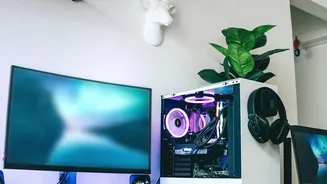
Now that you are sitting correctly with your hands in the right position, you can finally adjust your screen. A common mistake is to have the screen too low, as with a laptop on a desk, which forces you to crane your neck down. To prevent neck and shoulder strain, position your monitor so that the top of the screen is at or slightly below your eye level. It should be placed directly in front of you, about an arm's length away. This setup allows your head to stay balanced over your shoulders in a neutral position. If you use a laptop, propping it up on a stand or a stack of books and using an external keyboard and mouse is highly recommended to achieve this correct alignment.
The 10-Minute Audit
Take ten minutes today to audit your own setup using this sequence: chair first, then keyboard, then screen. Start by planting your feet and adjusting your chair height. Then, see where your hands fall on your keyboard—you may need to adjust your chair height again or use a keyboard tray. Finally, with your posture set, adjust your monitor height and distance. Making these small, connected adjustments can dramatically improve your daily comfort and prevent long-term strain. Remember that even the best setup is no substitute for movement. Get up, stretch, and walk around for a few minutes every half hour to keep your muscles from becoming stiff.