






Understanding the Source of the Strain
The human body is not designed to sit in one position for eight hours a day, especially not when hunched over a laptop. Much of the chronic pain associated with remote work stems from poor posture. When your workspace isn't set up correctly, your body compensates.
A monitor that is too low causes you to crane your neck forward, a position often called "tech neck." This forward tilt dramatically increases the strain on your cervical spine and upper back muscles. Similarly, sitting in a chair without adequate back support causes your lower spine's natural curve to flatten. This forces muscles and ligaments to work overtime, leading to fatigue and pain in the lower back. Over time, this sustained, unnatural posture can contribute to musculoskeletal issues, joint inflammation, and even long-term spinal disc problems.
The Golden Rule for Monitor Height
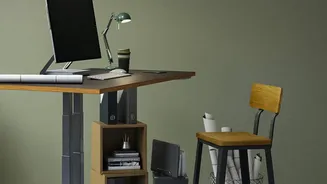
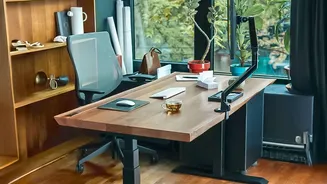
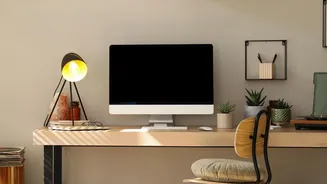
The single most effective change you can make to combat neck and shoulder pain is adjusting your monitor's height. The goal is to achieve a neutral neck position. The universally accepted guideline is to position the top of your screen at or slightly below your eye level. When you sit up straight and look forward, your gaze should naturally land on the top third of the screen. This alignment allows you to view the entire monitor without tilting your head up or down. If you work on a laptop, placing it directly on a desk is a common cause of strain. You can easily correct this by placing the laptop on a stack of books or a dedicated stand to elevate the screen. The monitor should also be positioned about an arm's length away to prevent both eye strain and the tendency to lean forward.
Making Your Chair Support Your Body
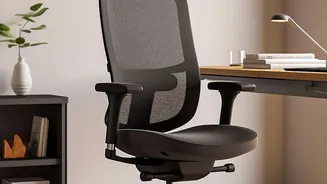
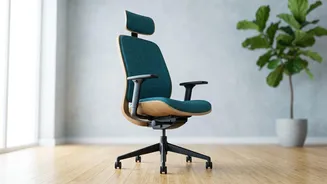
An ergonomic setup starts with your chair, which serves as the foundation for your posture. A supportive chair helps maintain the natural S-curve of your spine. First, adjust the chair's height so your feet rest flat on the floor with your knees level with or slightly below your hips. Your back should be firmly against the backrest. If your chair lacks built-in lumbar support, placing a small pillow or a rolled-up towel in the small of your back can provide the necessary support to prevent slouching. The depth of the seat should allow for a gap of about two to three inches between the edge of the seat and the back of your knees. Armrests should be positioned so your shoulders are relaxed and your elbows are bent at a roughly 90-degree angle, close to your body.
Beyond the Screen: Eyes, Wrists, and Movement
While monitor and chair height are critical, a truly ergonomic setup considers the entire body. Staring at a screen for hours can lead to computer vision syndrome, with symptoms like eye strain, dryness, and headaches. To combat this, follow the 20-20-20 rule: every 20 minutes, look at something 20 feet away for 20 seconds to give your eyes a rest. Your keyboard and mouse should be on the same level, close enough to use without reaching. Your wrists should remain in a straight, neutral position while typing, not bent up or down. Finally, the best posture is one that is frequently changing. Static positions are a primary cause of stiffness and pain. Set a reminder to get up, stretch, and walk around for a few minutes every hour. These small movements improve circulation and give your muscles a much-needed break.