




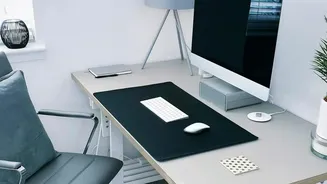

Start with Your Foundation: The Chair
Proper posture starts from the ground up. The first step is to adjust your chair height so your feet can rest flat on the floor. Your goal is to create a roughly 90-degree angle at your knees, with your thighs parallel to the floor. If your desk is high and
you've raised your chair to compensate, leaving your feet dangling, use a footrest or a sturdy stack of books to provide support. This position helps maintain good blood circulation and provides a stable base for your entire spine. Once the height is set, adjust the seat depth. You should be able to sit all the way back, so your lower back is touching the backrest, while leaving a small gap of about two to three fingers' width between the front edge of the seat and the back of your knees. This prevents the seat from pressing into your nerves and blood vessels.
Dial in Your Armrests and Back Support
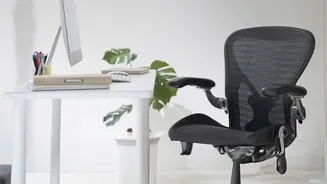
With your feet and legs correctly positioned, turn your attention to your upper body. Adjust your armrests so that when your shoulders are relaxed, your elbows are bent at a comfortable 90-degree angle. Your forearms should be parallel to the floor as they rest on the desk or keyboard tray. This takes the strain off your shoulders and neck, preventing you from hunching forward. Next, ensure your back is fully supported. A good ergonomic chair will have lumbar support that fits into the natural curve of your lower back. If your chair lacks this, placing a small pillow or a rolled-up towel at the base of your back can serve the same purpose, encouraging your spine to maintain its natural S-curve instead of slumping into a C-shape.
Align Your Gaze: Setting Monitor Height
One of the most common ergonomic mistakes is having a monitor that is too low, forcing you to crane your neck down for hours. To find the right height, sit up straight and look directly forward. The top edge of your monitor's screen should be at or just slightly below your eye level. This allows your eyes to naturally look slightly downward to view the center of the screen, keeping your head in a neutral position over your shoulders. If you use a laptop, this is nearly impossible without help. Prop your laptop on a stand or a stack of books to raise the screen to eye level, and use a separate keyboard and mouse to keep your arms and wrists in the correct position.
Find the Right Viewing Distance
Monitor height is only half the battle; distance is just as critical. A screen that is too close can cause eye strain, while one that's too far away will make you lean forward, defeating the purpose of your careful posture adjustments. A reliable rule of thumb is to position your monitor about an arm's length away from you—generally at least 20 inches (50 cm) from your eyes. Sit back in your chair, extend your arm, and your fingertips should just about touch the screen. Larger monitors may need to be placed even further back to allow you to see the entire screen without constantly moving your head.
It’s Not Just a Static Position
While a perfectly adjusted workstation is crucial, it's important to remember that ergonomics is also about movement. The human body isn't designed to stay in one position for eight hours a day. Even in the best setup, prolonged sitting can cause muscle tightness and stiffness. Make it a habit to take short breaks every 30 to 60 minutes. Stand up, stretch, walk around your home, or do some gentle backbends to decompress your spine. Motion is medicine for your back, and these microbreaks are just as important as your initial setup for keeping pain at bay and feeling good throughout your workday.