






Your Chair Is the Foundation
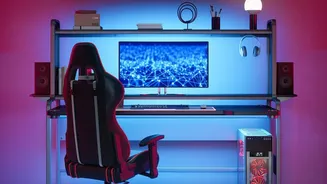
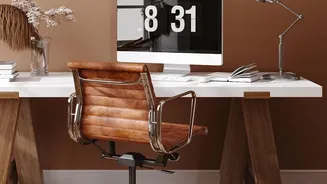
Everything starts with your chair. Before you worry about your screen or keyboard, make sure your primary support is working for you, not against you. Adjust the height so your feet rest flat on the floor, with your thighs roughly parallel to the ground.
Your knees should be at about a 90-degree angle. If your feet don't reach, use a footrest or even a sturdy book. Sit back fully in the chair so your lower back makes contact with the lumbar support, which should fit into the natural curve of your spine. If your chair lacks support, a rolled-up towel can work in a pinch. Finally, adjust the armrests so your shoulders are relaxed and your elbows can bend at a comfortable 90-degree angle, close to your body.
Align Your Monitor to Your Gaze
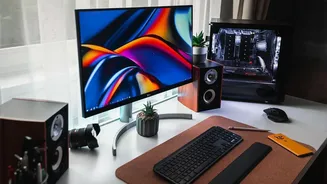
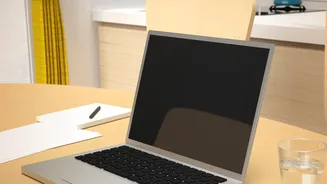
Constantly looking down at a screen is a primary cause of neck and shoulder strain. Position your monitor directly in front of you, about an arm's length away. The crucial adjustment is height: the top of the screen should be at or just below your eye level. This allows you to look straight ahead with a neutral neck position. If you work on a laptop, the low screen height is a common ergonomic pitfall. To fix this, use a laptop stand or a stack of books to raise the screen to eye level, and use a separate, external keyboard and mouse for typing.
Position Your Keyboard and Mouse
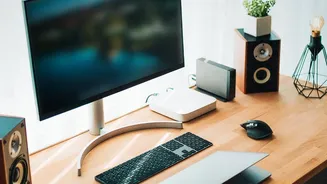
Your keyboard and mouse placement dictates the posture of your wrists, arms, and shoulders. Place your keyboard directly in front of you, with the mouse close beside it. When you type, your elbows should remain bent at roughly a 90-degree angle, close to your torso. Most importantly, your wrists should be straight and in a neutral position, not bent up or down. Avoid resting your wrists on the sharp edge of a desk, which can compress nerves over time. If your desk is too high to achieve this comfortably, a keyboard tray can help you position it lower.
Consider Your Environment
Beyond your main hardware, your surroundings also impact comfort. Poor lighting can cause eye strain and headaches. To reduce glare, position your monitor so it is perpendicular to any windows, and use blinds to control bright, natural light. Avoid having a bright light source, like a lamp or overhead fixture, directly in your line of sight. Also, make sure the space under your desk is clear to allow your legs and feet to rest comfortably without being cramped. Keep frequently used items like your phone or a notepad within easy reach to avoid constant twisting and stretching.
The Best Position Is Your Next Position
Even the most perfectly ergonomic setup has a flaw: it encourages you to stay still. The human body is not designed for prolonged static postures. No single position, no matter how “correct,” is healthy to hold for hours on end. The most critical habit for desk comfort is to change your position frequently. Make it a point to stand up, stretch, or walk around for a couple of minutes at least once every hour. Simple movements like rolling your shoulders, gently tucking your chin to stretch your neck, and reaching your arms overhead can counteract the muscle fatigue that builds up from sitting. This dynamic approach is just as important as your static setup.