





Understanding the Chain of Pain
To understand why your lower back hurts, you first need to look up—at your neck and shoulders. The spine is one interconnected system. When you slouch or crane your neck to see a poorly positioned monitor, you're not just straining your neck. This forward
head posture puts immense pressure on your entire spine, forcing the muscles in your lower back to work overtime to keep you upright. Over months and years, this constant compensation leads to muscle fatigue, stiffness, and eventually, the chronic pain that plagues so many office workers and work-from-home professionals in cities from Bengaluru to Delhi. The pain you feel in your lumbar region is often the final symptom of a problem that starts with your posture at the desk.
Step 1: Master Your Chair for a Stable Foundation
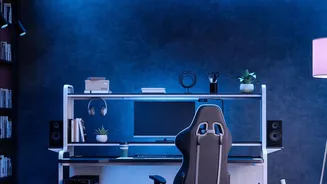
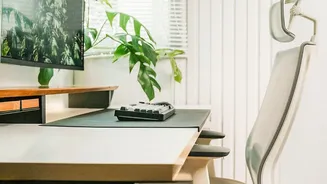
Before you touch your monitor, your chair needs to be your anchor. The goal is to create a stable base that supports a neutral spine. Start by adjusting the height. Your feet should be flat on the floor, with your thighs parallel to it. Your knees should be bent at a 90-degree angle. If your feet are dangling, you lose core stability; if your knees are pointed upwards, you're encouraging a slouch. Sit all the way back in the chair so that your spine is making full contact with the backrest. The chair should support the natural S-curve of your back. If your chair lacks built-in lumbar support, a rolled-up towel or a small cushion placed in the small of your back is a simple and effective fix.
Step 2: Align Your Monitor to Protect Your Neck
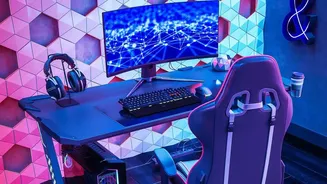
With your chair set, it's time to address the monitor. An incorrectly positioned screen is a primary driver of poor posture. To find the right height, sit up straight and look forward. The top of your monitor should be at or just slightly below your eye level. This allows you to view the entire screen without tilting your head up or down, keeping your neck in a neutral, relaxed position. The monitor should also be about an arm's length away from you. If it's too close or too far, you’ll unconsciously lean in or squint, which again pulls your spine out of alignment. For laptop users, this almost always means the screen is too low. The solution is to use a laptop stand and an external keyboard and mouse to separate the screen from the keyboard.
Bringing It All Together for a Neutral Posture
Your chair and monitor are the two most critical elements, but a truly ergonomic setup considers the entire workspace. Your keyboard and mouse should be positioned so that your elbows are bent at a roughly 90-degree angle, with your forearms parallel to the floor. Your shoulders should be relaxed, not hunched up towards your ears. Avoid twisting your torso to reach for items; keep frequently used objects within easy reach. This unified approach ensures there are no weak links in your postural chain, from your feet on the floor to your eyes on the screen. The entire goal is to create a 'neutral posture' that minimises strain on muscles, ligaments, and spinal discs throughout the day.
The Final Ingredient: Movement
Even the world's most perfect ergonomic setup cannot defeat the negative effects of being static for hours on end. Your body is designed to move. Prolonged sitting, no matter how good your posture, reduces blood flow and puts pressure on your spinal discs. It is crucial to incorporate regular movement into your day. Set a timer to get up, stretch, and walk around for a few minutes every 30 to 45 minutes. Simple stretches like a knee-to-chest pull or a gentle spinal twist can do wonders to relieve the tension that builds up from sitting. Think of ergonomics and movement as a team: the proper setup makes your static periods less harmful, and regular movement counteracts the effects of being still.