




The Foundation: Adjust Your Chair First
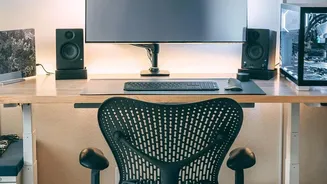
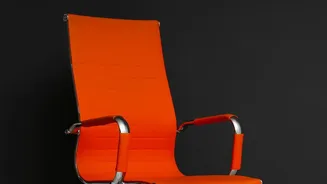
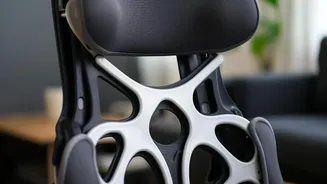
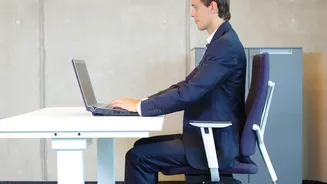
Before you touch your monitor, start with your chair. The goal is to create a stable base that supports the natural curve of your spine. First, adjust the chair’s height. Your feet should rest flat on the floor, with your knees bent at approximately a 90-degree
angle. If your feet are dangling, your lower back is likely taking on extra strain. If your chair is too low, it can cause you to slouch. Next, address the seat depth. Sit all the way back so your hips touch the back of the chair. There should be a small gap—about two to three fingers’ width—between the front edge of the seat and the back of your knees. This prevents the seat from cutting off circulation. Finally, position the lumbar support. The most pronounced part of the backrest should fit snugly into the curve of your lower back, roughly at your belt line. If your chair lacks adjustable support, a small cushion or even a rolled-up towel can work wonders.
The Focal Point: Set Your Monitor Height
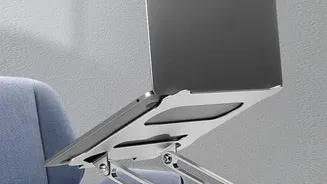
With your posture grounded, it's time to position your screen to prevent neck and shoulder pain. The golden rule is to place the monitor so that the top edge of the screen is at or just slightly below your eye level. This allows you to view the entire screen without tilting your head up or down, which is a common cause of strain. To check the distance, sit back comfortably and extend your arm; your fingertips should just about touch the screen. This is typically between 50 and 100cm for most people. If you use a laptop, you are likely hunching over. The best solution is to place the laptop on a stand or a stack of books to raise the screen to eye level and use a separate, external keyboard and mouse. This small change decouples the screen from the keyboard, allowing you to position both ergonomically.
The Supporting Cast: Arms and Wrists
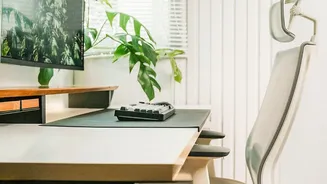
Your arms also play a key role in maintaining a healthy posture. Adjust your armrests so your elbows can bend at a comfortable 90 to 100-degree angle, with your forearms parallel to the floor. Your shoulders should be relaxed, not hunched up towards your ears. The armrests are there to support your arms during pauses, not necessarily while you type. This setup reduces tension in your shoulders and upper back. Your keyboard and mouse should be close enough that you can use them without reaching or straining. Keep your wrists in a neutral, straight position rather than bending them up or down. This alignment helps prevent repetitive strain injuries that can affect your wrists and hands.
The Most Important Rule: Keep Moving
Even the most perfectly ergonomic setup has a flaw: it encourages you to stay still. Static posture is a major contributor to muscle fatigue and stiffness. Health experts recommend breaking up long periods of sitting. Try to follow the 20-20-20 rule: every 20 minutes, look at something 20 feet away for 20 seconds to reduce eye strain. More importantly, get up and move. Some experts recommend standing for eight minutes and moving for two minutes for every 20 minutes of sitting. If that’s not feasible, simply aim to stand, stretch, and walk around for a few minutes every half hour. This movement promotes blood circulation, reduces stiffness, and gives your postural muscles a much-needed break from holding a single position. Unlocking your chair’s tilt function can also encourage “dynamic sitting,” which helps relieve pressure on the lower back throughout the day.