








Understanding the Threat of AI Media
You receive a video in a chat group. It looks and sounds like a famous celebrity endorsing a new investment scheme. It’s convincing, professional, and entirely fake. This is the world of AI-generated media, often called deepfakes. While much AI-generated content
is harmless, threat actors are increasingly using AI to create highly persuasive fake images, audio messages, and videos to spread misinformation, commit fraud, or damage reputations. [7, 8, 15] These files can be used in sophisticated phishing scams, impersonate family members to ask for money, or even contain hidden malware that infects your device once downloaded. [16, 19] The technology has made it easier than ever to create synthetic media that is difficult to distinguish from reality, making it a potent weapon for cybercriminals. [18]
The Danger of Automatic Downloads
The biggest vulnerability for most users is a feature designed for convenience: automatic media downloads. Messaging apps like WhatsApp and Telegram often have this feature enabled by default, meaning any photo, video, or document sent to you is automatically saved to your phone. [2] This creates a direct pathway for malicious files to land on your device without you even clicking on them. [10] A file that seems like an innocent image could be a carrier for malware that steals your personal information, financial data, or compromises your phone's security. [20, 21] By downloading every file, you not only clog your phone’s storage but also expose yourself to risks you never chose to take. [4] Disabling this feature is the single most effective step you can take to control what gets saved on your device and protect yourself from these emerging threats. [11]
How to Secure WhatsApp
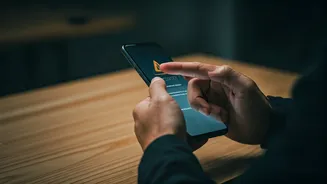
WhatsApp is one of the most popular messaging apps in India, and securing it is crucial. By default, it may be set to download all media over Wi-Fi. You can, and should, turn this off. The process is simple and takes less than a minute. For Android users: 1. Open WhatsApp and tap the three-dot menu in the top-right corner, then select 'Settings'. [5] 2. Go to 'Storage and Data'. [5] 3. Under the 'Media auto-download' section, you will see three options: 'When using mobile data', 'When connected on Wi-Fi', and 'When roaming'. [10] 4. Tap on each option one by one and uncheck all the boxes for Photos, Audio, Videos, and Documents. Tap 'OK' to save. [5] For iPhone users: 1. Launch WhatsApp and tap the 'Settings' tab in the bottom-right corner. 2. Go to 'Storage and Data'. [5] 3. You will see categories for Photos, Audio, Videos, and Documents. Tap on each one and select 'Never'. [5] This ensures that no file is downloaded until you manually choose to do so, giving you a chance to assess its legitimacy. [11]
Locking Down Your Telegram Settings
Telegram is another widely used platform, known for its large groups and channels, which can be a hotbed for unsolicited files. Securing your Telegram account is just as important. The steps are similar to WhatsApp. For both Android and iPhone users: 1. Open the Telegram app and tap the three-line menu icon (or 'Settings' on the bottom bar for iPhone). [2, 9] 2. Navigate to 'Settings' and then select 'Data and Storage'. [4] 3. In the 'Automatic media download' section, you will find options for 'When using mobile data' and 'When connected on Wi-Fi'. [2] 4. Tap on each of these options and turn the master toggle for 'Auto-download media' to the OFF position. [2, 3] You can also fine-tune settings for specific media types like photos or videos if you prefer, but turning everything off provides the strongest defence. [3] From now on, you'll see a download arrow on incoming media, requiring you to actively tap it to save the file.
Beyond App Settings: Good Digital Habits
Adjusting your settings is the first line of defence, but building smart digital habits is equally vital. Be critical of the media you receive, especially if it seems too good to be true or tries to create a sense of urgency. If you get a suspicious video or voice note, even from a known contact, take a moment to verify it through a different channel, like a phone call. Avoid downloading files or clicking links from unknown senders or in large, unfamiliar groups. It's also wise to regularly review the apps on your phone and delete any you don't use or recognize. [22] Ensure your phone’s operating system is always up-to-date, as these updates often contain critical security patches that protect you from the latest vulnerabilities. [21] By combining technical settings with a healthy dose of scepticism, you can navigate the digital world much more safely.