







Why Specs Don't Tell the Whole Story
Monitor spec sheets are a blizzard of numbers: resolution, refresh rate, response time, and curvature radius. While these figures provide a baseline for comparison, they fail to capture the most critical factor: how you actually experience the screen.
Manufacturers sell technical potential, but real-world performance is a product of ergonomics, software, and personal calibration. A monitor with god-tier specs can feel underwhelming with default settings, while a mid-range screen can feel like a premium command center once properly tuned. The "real reason" setup tips matter so much is that they bridge the gap between a panel's theoretical capabilities and its practical, day-to-day usability.
Dial In Your Color and Brightness
Most monitors leave the factory with their brightness and color settings cranked up to look impressive under bright retail store lights. This is rarely ideal for a home office or gaming den. Before doing anything else, let your monitor warm up for about 30 minutes. Then, dive into the on-screen display (OSD) and select a neutral picture mode like 'Standard' or 'sRGB,' disabling any 'Vivid' or 'Eco' settings. From there, use your operating system’s built-in calibration tool—just search for "Calibrate display color" in Windows or find the display calibrator assistant on a Mac. These tools walk you through simple visual tests to adjust gamma, brightness, and contrast until you can clearly see details in both dark and bright images, ensuring your screen is comfortable and accurate.
Master Your Window Management
An ultrawide’s primary superpower is its vast horizontal space, but without the right tools, it just becomes a wider canvas for chaos. Dragging windows around manually is inefficient. This is where window management software becomes non-negotiable. For Windows users, Microsoft's own PowerToys includes a utility called FancyZones, which lets you create custom layouts to snap windows into perfectly organized zones with a single keypress. On macOS, third-party apps like Rectangle or Yabai offer similar, and often more powerful, tiling capabilities. By defining specific areas for your browser, chat apps, and documents, you transform the screen from a single, unwieldy desktop into a structured and highly efficient dashboard.
Don't Neglect Physical Ergonomics
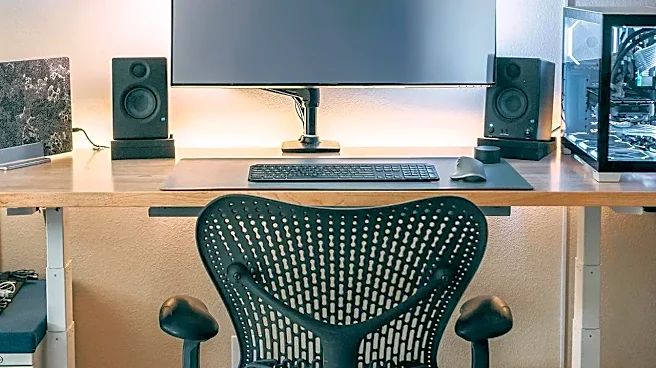
The sheer size of an ultrawide monitor fundamentally changes desk ergonomics. The old rule of keeping your monitor an arm's length away often doesn't apply; for many 34-inch and larger screens, you may need a viewing distance closer to 30 or 40 inches to take in the whole screen without constant head-turning. This often requires a deeper desk than you might expect. The ideal height is to have the top of the screen at or slightly below eye level, which prevents neck strain from looking up. Instead of centering the entire monitor on your desk, align your body with the center of your primary work area on the screen. This simple shift ensures your neck stays neutral during focused tasks, with peripheral content staying in your peripheral vision.
Tune for Your Primary Use Case
The optimal settings for a fast-paced gaming session are different from those for a day of spreadsheet work. Gamers should enable any 'Game Mode' features, which often reduce input lag and may offer options like on-screen crosshairs or black equalizers to brighten dark areas. For productivity, the focus should be on text clarity and color accuracy. Many monitors have presets for different activities like 'Movie,' 'Reading,' or 'Gaming.' It's worth spending a few minutes exploring these options in your monitor's OSD to see which works best for your main tasks. Creating a custom user profile that balances brightness, contrast, and color temperature for your specific environment can provide a significantly better experience than any factory default.