







1. Go Wired With an Ethernet Cable
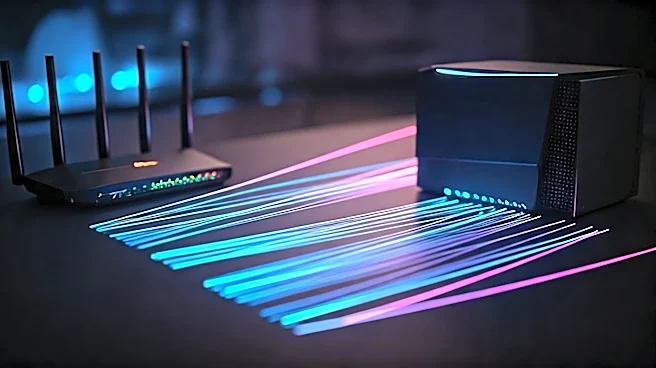
This is the single most effective change you can make. While Wi-Fi is convenient, it's susceptible to interference from other devices, walls, and even your neighbor's network. A physical Ethernet cable connecting your console or PC directly to your router provides a stable, faster, and more reliable connection. It dramatically reduces packet loss and jitter, two of the main culprits behind frustrating lag. Think of it as a private, high-speed lane for your gaming data, bypassing all the traffic jams of a crowded wireless network. If your router is in another room, consider a long cable or a Powerline adapter, which uses your home's electrical wiring to transmit the internet signal.
2. Optimize Your Router’s Position
If you absolutely must use Wi-Fi, placement is everything. Don't
hide your router in a cabinet, behind the TV, or in a corner of the basement. For the best signal, it should be in a central, elevated location, free from obstructions. Keep it away from other electronics, especially microwaves and cordless phones, which operate on the same 2.4 GHz frequency and can cause significant interference. If your router has adjustable antennas, point one vertically and one horizontally to maximize coverage. A better signal means a more stable connection and, ultimately, lower latency.
3. Tame Your Bandwidth Hogs
Your internet connection is a shared resource. If someone else in your house is streaming a 4K movie, downloading massive files, or on a video call, your game is going to suffer. Before you start a match, make sure to close any unnecessary applications on your PC or console. This includes background downloads from Steam or other launchers, cloud-syncing services like Dropbox, and any open browser tabs with video content. On a shared network, ask your family or roommates to pause heavy downloads or streaming during your gaming session. Every bit of bandwidth you can free up is more data dedicated to your game.
4. Enable Quality of Service (QoS)
Many modern routers have a feature called Quality of Service, or QoS. This powerful tool lets you prioritize internet traffic for specific devices or applications. By logging into your router's admin settings (usually by typing its IP address into a web browser), you can find the QoS menu. From there, you can tell your router to give your gaming console or PC top priority. This ensures that even if other people are using the network, your game's data packets get to jump to the front of the line. It's like having a VIP pass for the internet, preventing other activities from causing lag spikes in your game.
5. Choose the Right Game Server
Latency is heavily influenced by physical distance. The farther your data has to travel, the higher your ping will be. Most online games allow you to choose your server region. Always select the one that is geographically closest to you. Playing on a North American server while you're in California will give you a much better experience than connecting to a server in Europe or Asia. Some games will show you your estimated ping to each server region before you connect. Pay attention to this and always pick the lowest number for the smoothest possible experience.
6. When to Call Your Internet Provider
If you've tried everything and your connection is still lagging, the problem might not be inside your home. It could be an issue with your Internet Service Provider (ISP). Run a few speed tests (using a wired connection for accuracy) at different times of the day. If your speeds are consistently much lower than what you're paying for, or if your ping is high even on a speed test, it's time to make a call. There could be an issue with the line to your house or a problem in their network. Be prepared to share your troubleshooting steps with them; it shows you've done your homework and helps them diagnose the problem faster.