





5. Storage: Speed Is Your Best Friend
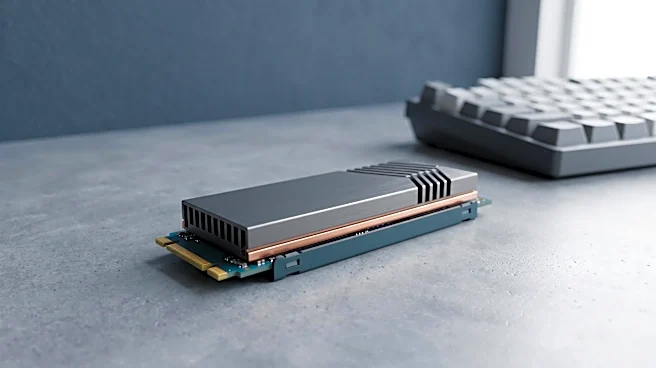
Let's start with the foundation: storage. Photo editing involves moving massive files around—importing RAW images, generating previews, and exporting final JPEGs. A slow hard drive is like a traffic jam for your creativity. In 2026, a standard Solid-State
Drive (SSD) is the absolute minimum. But for a truly responsive workflow, you need an NVMe SSD. These drives are exponentially faster, meaning Lightroom catalogs open instantly and you're not left waiting as the machine struggles to read and write data. Don't skimp on size, either. With camera resolutions soaring, a 1TB drive is a practical starting point for professionals. Running out of space is a workflow killer, and while external drives are great for archiving, your operating system, editing applications, and current projects should live on the fastest internal drive you can afford.
4. Graphics Card (GPU): The AI Assistant
For years, the Graphics Processing Unit (GPU) was secondary for still photography. Basic edits in Lightroom and Photoshop were primarily CPU-bound. That has changed dramatically. The rise of AI-powered features like intelligent masking, subject selection, and advanced noise reduction now heavily leverages the GPU. A capable dedicated graphics card from a maker like NVIDIA can reduce the time for these tasks from minutes to mere seconds. While you don't need a top-of-the-line gaming GPU, having a dedicated graphics card with at least 8GB of its own memory (VRAM) is becoming essential for a modern, efficient workflow. It offloads complex work from the main processor, keeping the entire system feeling snappy.
3. The Processor (CPU): The Engine Room
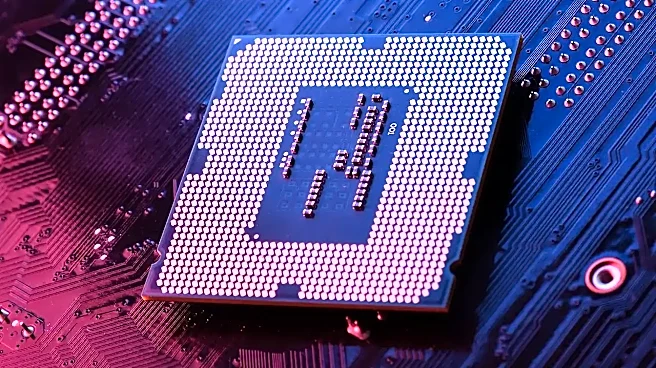
The Central Processing Unit (CPU) is the engine of your computer, and it’s still critically important. Every adjustment, from a simple exposure slider to applying a complex filter, is a calculation performed by the CPU. For photo editing, a processor's single-core speed is often more important than the raw number of cores. This is because many editing tasks are linear and can't be easily split among multiple cores. A high clock speed makes the software feel responsive and interactive. Look for modern high-end processors like an Intel Core Ultra 9 or AMD Ryzen 9, which provide a great balance of high single-core performance for active editing and plenty of cores for background tasks like exporting a large batch of photos.
2. Memory (RAM): Your Digital Workspace
Think of RAM (Random Access Memory) as your digital desk space. The more you have, the more projects and applications you can have open and active without the system slowing down. When you run out of RAM, your computer has to use the much slower SSD as temporary memory, causing performance to grind to a halt. With high-resolution RAW files and complex, multi-layered Photoshop documents, RAM gets eaten up quickly. For 2026, 16GB is the absolute bare minimum, but 32GB is the recommended sweet spot for most professional and serious amateur photographers. If you frequently work with massive files, stitch large panoramas, or run multiple demanding applications at once, investing in 64GB will ensure a consistently smooth experience.
1. The Display: Your Window to Reality
This is it. The single most important, and most frequently overlooked, component of a photo editing laptop. You can have the fastest processor and most powerful GPU in the world, but if your screen isn't showing you the right colors, you are editing blind. A screen's quality is defined by its color accuracy and gamut—the range of colors it can display. Look for a display that covers at least 95-100% of the Adobe RGB or DCI-P3 color spaces. This ensures that the vibrant greens and cyans in a landscape photo are actually visible to you, and that the skin tones in a portrait are true to life. Without an accurate, wide-gamut display, you risk delivering images that look perfect on your screen but appear dull, oversaturated, or color-shifted when printed or viewed on other devices. Resolution is good, but color accuracy is non-negotiable.