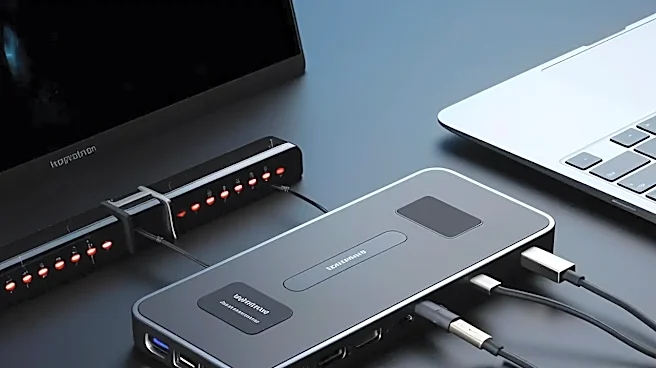









The First Surprise: Not All USB-C Is Thunderbolt
The most common stumbling block is the port itself. A USB-C port is just a physical shape—a small, reversible oval. What it's capable of depends entirely on the technology behind it. While all modern Thunderbolt ports use the USB-C connector, not every
USB-C port on a laptop is a Thunderbolt port. Many are standard USB-C, which might support slower data transfer or only a single, lower-resolution display. Plugging a powerful Thunderbolt dock into a basic USB-C port will result in dramatically limited performance, if it works at all. The tell-tale sign of a Thunderbolt port is a small lightning bolt symbol next to it. Without that, you're not getting the high-speed connection the dock was built for.
The Cable Is More Than Just a Wire
So you've confirmed your laptop has a Thunderbolt port. The next surprise is the cable. It turns out that the short cable that came with your dock is special—and expensive to replace. A standard USB-C charging cable, even one that looks identical, often lacks the internal wiring to handle Thunderbolt's massive data speeds and video signals. Using the wrong cable can cripple performance, causing monitors to flicker or not work at all, and data transfers to slow to a crawl. For full 40 Gbps speeds, passive cables are typically limited to a short length, often under two feet. Longer cables must be 'active'—containing their own tiny chips to regulate the signal—which adds to the cost and complexity.
Bandwidth Isn't Infinite, It's Shared
Thunderbolt 4 boasts an impressive 40 Gbps (gigabits per second) of bandwidth, and Thunderbolt 5 doubles that to 80 Gbps. But this is a single, shared resource pool. The 'surprise' hits when you connect multiple demanding devices. Running two 4K monitors, a high-speed external SSD, and a gigabit Ethernet connection all at once forces the dock to divide that bandwidth among them. Video signals often get priority, but that can leave less room for your data-heavy tasks. You may notice your super-fast external drive isn't hitting its advertised speeds while your monitors are running. It's not a faulty dock; it's a traffic jam on the data highway, where every device is competing for its share of the same lane.
Your Laptop Might Be Starving for Power
One of Thunderbolt's best features is its ability to charge your laptop through the same cable that handles data and video, a standard known as Power Delivery (PD). The surprise comes when your laptop battery is draining even while plugged into the dock. This happens because not all docks provide enough wattage to power and charge every laptop. A slim ultraportable might only need 65 watts, but a high-performance workstation or gaming laptop can require 100 watts, 150 watts, or even more. If the dock's power output is lower than what the laptop needs to operate under load, it will start to draw from its own battery to make up the difference.