





The Spec Sheet Trap
When you buy a traditional mouse, especially for gaming or design, you're trained to look for high Dots Per Inch (DPI) for sensitivity and a high polling rate for responsiveness. These specs measure how precisely and quickly the mouse reports its movement
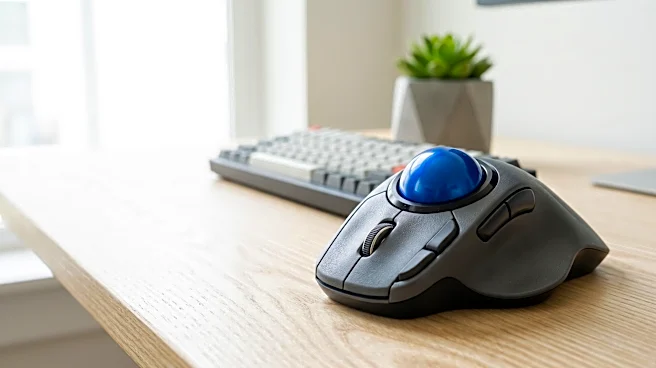
across a desk surface. But a trackball doesn’t move. It’s a stationary device where your thumb or fingers manipulate a ball in a socket. This fundamental difference means that sky-high DPI is less critical. The device’s performance isn't about how it scans a mousepad, but about the finesse with which you can manipulate the ball. A trackball's precision comes from controlled, small-scale movements of your digits, not large sweeps of your arm.
The Real Performance Metric: Ergonomics
The single greatest advantage of a trackball is one you’ll never find on a spec sheet: ergonomics. A traditional mouse requires you to constantly move your wrist and forearm, which can lead to repetitive strain injury (RSI). A trackball, by contrast, keeps your arm and wrist in a fixed, neutral position. All movement comes from the small, dexterous muscles in your fingers or thumb. This isn't just about comfort; it's a performance enhancer. By reducing large muscle group fatigue, you can maintain fine motor control for longer periods, whether you’re editing a photo, navigating a sprawling spreadsheet, or targeting a foe in a game. The best posture is a relaxed one, and that's where trackballs excel.
Unlocking Potential With Software
Out of the box, a trackball’s default settings are often mediocre. The real magic happens in the software. Programs like Logitech Options+ or KensingtonWorks allow for deep customization that transforms the device. The most crucial settings are pointer speed and acceleration. Pointer speed determines how far the cursor moves with each roll, while acceleration adds a velocity curve—flick the ball fast for cross-screen travel, but move it slowly for pixel-perfect adjustments. Beyond that, button mapping is a game-changer. Standard trackballs have extra buttons that are often wasted on default 'back' and 'forward' commands. Re-mapping these to frequent actions like copy/paste, opening a specific application, or even a 'precision mode' that temporarily slows the cursor can dramatically boost productivity.
Investing in Muscle Memory
There's no sugarcoating it: switching to a trackball has a steep learning curve. After decades of using a conventional mouse, your brain is hardwired for that specific set of movements. Using a trackball feels alien at first, and many users give up in frustration within the first few days. But accuracy with a trackball is a skill built through practice. It requires developing new neural pathways, a process often called muscle memory. It takes time to unlearn the instinct to move your entire arm and trust your fingers to take over. Users who push through this initial awkward phase often report that they eventually become more accurate and faster than they ever were with a traditional mouse.
Quick Setup Tips for Success
To get the most out of your trackball, start with the physical setup. Find an 'anchor point' where your hand can rest comfortably on the device and your forearm is supported by your desk or chair arm. Your wrist should be straight, not bent. Then, dive into the software settings. A good starting point is to adjust the pointer speed so one fluid roll of the ball moves your cursor from one edge of the screen to the other. From there, enable a touch of acceleration and fine-tune it until you stop overshooting your targets. Finally, keep it clean. Dust and debris can build up around the ball's bearings, causing it to stick or stutter. A quick regular cleaning ensures smooth rolling and consistent tracking.