







Beyond the Router Reboot
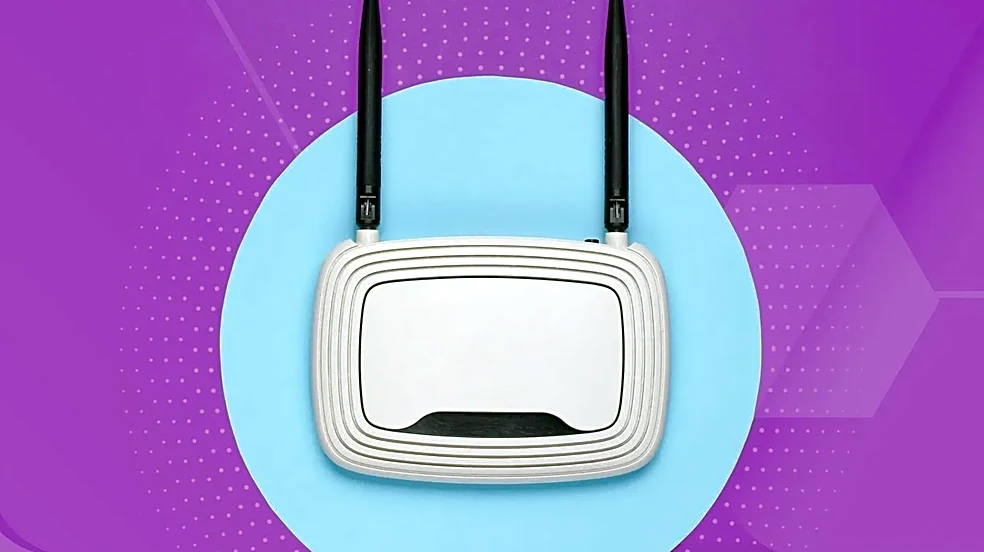
When your internet slows to a crawl, the first piece of advice is always the same: 'Have you tried turning it off and on again?' It’s the universal tech support mantra for a reason—it often works. A simple reboot can clear out a router's temporary glitches
and get you back online. The next steps are just as predictable: check for outages, move the router to a more central location, and maybe make sure a neighbor isn't piggybacking on your network. But what happens when you’ve done all that, and your connection still stutters and buffers? You might have full bars of signal, but pages load slowly, and video calls are a pixelated mess. This is where most people give up and blame their internet provider. The problem, however, is often much closer to home, lurking in the invisible airwaves all around you.
The Real Culprit: A Crowded Highway
Think of your Wi-Fi network as a highway. The different frequency bands (2.4 GHz and 5 GHz) are like different highways, and the channels within those bands are the individual lanes. When you and your neighbors all have routers, you're all trying to merge onto the same public highways. If too many routers in your apartment building or neighborhood are using the same 'lane' or channel, you get a massive traffic jam. This is called channel congestion or co-channel interference. Your devices and your neighbor's devices are all shouting over each other, and your router has to wait for a turn to speak. This constant waiting game is what causes the lag, buffering, and random disconnects that drive you crazy. Even if your device shows a strong signal, the quality of that signal is degraded because it's constantly competing for airtime.
The 'Auto' Setting Isn't So Automatic
Here’s the hidden detail most people—and even some engineers in a hurry—miss: the 'auto' channel setting on your router is often the source of the problem. In theory, 'auto' is supposed to intelligently scan the area and pick the least crowded channel for you. In reality, it’s not that smart. Most routers only perform this scan when they are first powered on or rebooted. They don't continuously monitor the airwaves for changes. So, the 'perfect' channel it picked at 3 AM during a reboot might be the most congested lane on the highway by 7 PM when everyone in your building is streaming movies and gaming online. Because the selection is static, your router will stubbornly keep trying to use that crowded lane, and your connection will suffer until the next reboot, when the cycle might just repeat itself on a different, equally-congested channel.
How to See the Invisible Traffic Jam
You can’t fix a problem you can’t see. To take control, you need to become a traffic cop for your own Wi-Fi. The tool for this job is a Wi-Fi analyzer app. There are many free and paid options available for your laptop (Windows and macOS) or your smartphone (Android). These apps scan all the wireless networks in your vicinity and show you a visual representation of which channels are being used. You'll instantly see which 'lanes' are packed with your neighbors' networks. For the 2.4 GHz band, which is older but has longer range, you should only ever use channels 1, 6, or 11. They are the only three that don't overlap with each other. For the 5 GHz band, there are many more non-overlapping channels to choose from, giving you a much better chance of finding a clear one.
Take the Wheel: Manually Change Your Channel
Once your analyzer app has helped you identify a less crowded channel (like an empty lane on that highway), the final step is to tell your router to use it. This involves logging into your router's administrative settings. You can typically do this by typing an IP address like 192.168.1.1 or 192.168.0.1 into your web browser. The exact address and login details are often printed on a sticker on the router itself. Once logged in, navigate to the 'Wireless' or 'Wi-Fi' settings. You'll find a dropdown menu for 'Channel'. Switch it from 'Auto' to the clear channel you identified. Save the settings, and your router will reboot. This single, simple change can have a more dramatic impact on your Wi-Fi stability and speed than buying a new router.