










The Steep Learning Curve Isn't a Myth
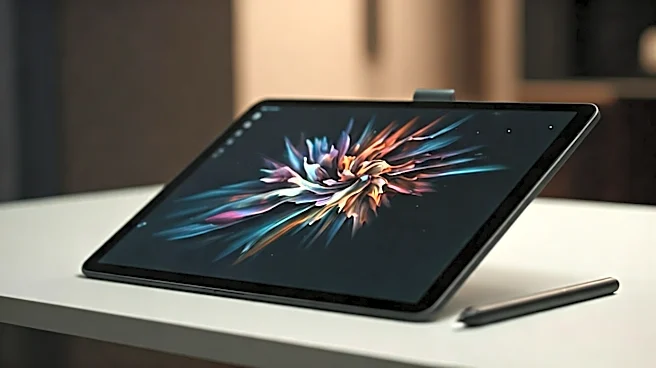
The first surprise is the most universal: it’s harder than it looks. Unlike an iPad, where the interface is built for casual touch, a professional drawing tablet is a highly specialized peripheral. If it's a screenless model, like a Wacom Intuos, you
have to master a new form of hand-eye coordination: drawing on the desk while looking at your monitor. It can take weeks, even months, for this to feel natural. Even with a display tablet like a Cintiq, where you draw directly on the screen, the surface feel is different from paper. The glass is smooth, and the friction you're used to is gone, which can make your first lines feel slippery and uncontrolled. Mastering the thousands of pressure sensitivity levels—which control line thickness and opacity—is a skill in itself.
Customization Is Both a Blessing and a Curse
Power-user tablets are decked out with ExpressKeys, radial menus, and multi-function pens. Professionals live and die by these shortcuts, programming them to switch tools, undo strokes, or zoom in an instant. For a first-timer, it’s a dizzying array of options. Do you map that button to the brush tool or the eraser? Which shortcuts will actually speed up your workflow? This “paralysis of choice” is a common hurdle. You can spend more time in the settings menu than actually drawing. Seasoned artists have spent years refining these setups. New users, on the other hand, often don't yet know what they don't know, making it difficult to set up an efficient system from the start.
The Software Is Half the Battle
A drawing tablet is only as good as the software it's paired with. A power user's workflow is a symbiotic dance between hardware (the tablet) and software (like Adobe Photoshop, Clip Studio Paint, or Krita). These programs are immensely powerful and complex. You’re not just learning to use a new pen; you’re learning a professional-grade creative suite. Things like layers, blend modes, custom brushes, and color management are fundamental concepts you need to grasp. The tablet simply provides a more intuitive way to interact with these tools. Many newcomers are surprised to find that the tablet doesn't magically make them a better artist; it’s a tool that requires you to build foundational digital art skills.
The Unexpected Physical Toll
You might think digital art would be less physically demanding than traditional media, but that’s not always the case. Staring at a bright screen for hours can cause significant eye strain. Furthermore, ergonomics are critical. Hunching over a tablet on a desk can lead to neck, shoulder, and wrist pain. Professional setups often involve adjustable stands or monitor arms that allow the artist to position the tablet at a comfortable angle, much like a traditional easel. Many first-time users are surprised to find themselves shopping for artist gloves (to reduce hand friction on the screen) and ergonomic chairs after just a few weeks. Without a proper setup, long drawing sessions can be more taxing than you'd expect.
Parallax, Jitter, and Other Technical Gremlins
While high-end tablets have minimized these issues, they can still surprise newcomers. Parallax is the small gap between the physical tip of your stylus and the cursor on the screen, most noticeable on older or cheaper display tablets. It can feel like your pen isn't perfectly aligned with your drawing. Then there’s jitter, where slow, deliberate lines can appear slightly wavy as the tablet's sensor tries to track the pen's position. Learning to draw with confident, quicker strokes can help, but it’s another adjustment. Finally, managing drivers, calibrating pen settings, and ensuring compatibility with your operating system can be an unexpected technical chore before you even open your art software.