/images/ppid_a911dc6a-image-1776152057944781.webp)

/images/ppid_a911dc6a-image-177587553468579902.webp)



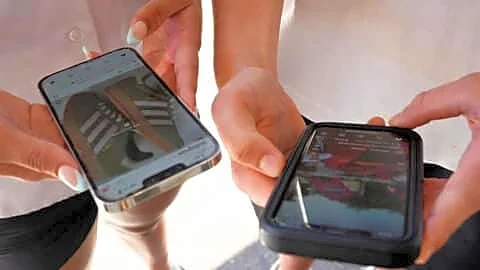
In an era where our smartphones have turned into our lifeline, work as our wallet, maps, and camera, it has a feature that remains underrated. Emergency SOS contacts on your smartphone can allow users to reach out to their loved ones quickly during an emergency or crisis. And still, a lot of users are not aware of how this feature works and have not even set it up. In this article, we explore how you can set up emergency SOS contact on your phone, whether it is an Android device or an iPhone. How To Set Up An Emergency Contact On AndroidGo to Settings.Click on Safety & Emergency.Tap On Emergency ContactsAdd one or more contact numbersInterestingly, several Android smartphones let users activate SOS by pressing the power button several times.
Xiaomi and Samsung also offer additional options such as automatic location sharing and emergency message alerts. How To Save Emergency SOS On iPhoneThis feature comes integrated with the Health app on iPhones. To activate it, follow the instructions below:Open the Health app.Click on your Profile.Choose the Medical ID.Click on Edit and scroll to Emergency ContactsAdd contacts and define your relationship with the person whose number you are adding.
Moreover, Apple allows you to even enable your location during an emergency call, ensuring contacts get the live updates. After you set up the Emergency SOS, the feature can be triggered by pressing long on the power button instantly or using a specific button combination. This device can further help you call emergency services, send alerts to selected contacts, and even share your location in real time. Additionally, some handsets can even produce loud alarm sounds to draw the attention of the nearby people. This smartphone feature is a crucial one to save lives in case of emergencies and accidents. It is recommended that you add at least two emergency contacts and check whether the feature remains active periodically.


/images/ppid_a911dc6a-image-177605052043941596.webp)


/images/ppid_a911dc6a-image-177590703630061364.webp)

/images/ppid_a911dc6a-image-177587902393563254.webp)