





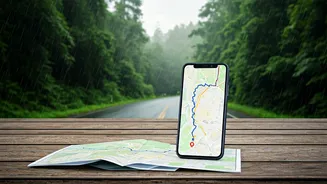


The Anatomy of Network Panic
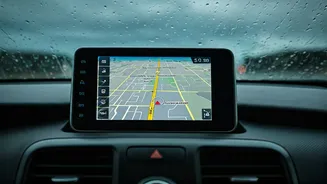
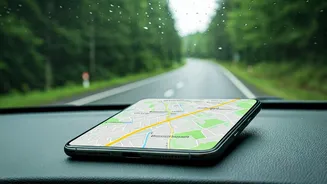
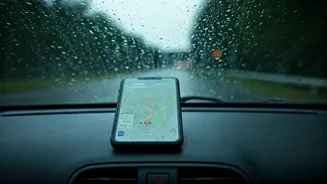
We’ve all been there, and it’s a uniquely modern form of anxiety. We place immense trust in the invisible network that guides our lives, and when it disappears—especially during stressful situations like driving in a downpour—we feel suddenly and profoundly
lost. While we often blame the rain itself, the reality is a bit more complex. Heavy rain alone rarely blocks a cell signal. The real culprits are the accompanying elements of a storm: high winds that can misalign antennas, lightning strikes that can damage equipment, and power outages that can take a local tower completely offline. Furthermore, during a significant weather event, networks can become congested as everyone in the area checks for updates, calls loved ones, or streams content while stuck indoors. The result is the same: your digital lifeline vanishes right when you need it most.
Your Digital Spare Tire
The solution, thankfully, is simple, free, and already built into the apps you use every day. It's the digital equivalent of having a spare tire or a first-aid kit in your car: downloading offline maps. By saving a map of a specific area directly to your phone's storage, you create a self-sufficient navigation tool. It doesn't need a cellular or Wi-Fi connection to show you where you are, find addresses within the downloaded area, or provide turn-by-turn directions. Think of it as a pre-emptive strike against 'network panic.' You're taking a few minutes of prep time when you have a good connection to save yourself from a major headache later. It’s a game-changer for road trips, visiting rural areas, or simply navigating your own city during an unpredictable storm.
How to Download on Google Maps
Google Maps makes this process incredibly straightforward. Before you head out, follow these simple steps: 1. Connect to Wi-Fi to avoid using your mobile data. 2. Open the Google Maps app and search for a city, county, or region you’ll be traveling to or through. For example, 'Yosemite National Park' or 'Cook County, IL.' 3. Tap on the name of the place at the bottom of the screen to bring up its information card. 4. In the top-right corner, tap the three-dot menu icon and select 'Download offline map.' 5. Google will present a rectangular frame over the map. You can pan and zoom to adjust the area you want to save. The app will tell you how much space the download will require. 6. Once you’ve framed your desired area, tap 'Download.' The map will be saved to your phone and will automatically be used by the app whenever you lose your connection in that geographic area. These maps typically expire after a year, but the app will remind you to update them.
Your Guide for Apple Maps
Apple integrated offline maps into its native app with iOS 17, bringing a much-requested feature to iPhone users. The process is just as simple: 1. While connected to Wi-Fi, open Apple Maps. 2. Search for the location you want to save. 3. Tap the 'Download' button that appears on the location’s information card. If you don't see one, you can also tap your profile icon next to the search bar, select 'Offline Maps,' and then 'Download New Map.' 4. Similar to Google, you can then adjust the borders of the map area you wish to save. 5. Tap 'Download.' Once saved, your phone will function just like it does with Google Maps, seamlessly switching to the offline version when your network fails. For those who want a dedicated offline experience, apps like Maps.me and Organic Maps have long specialized in this, offering highly detailed maps for the entire globe.
Knowing the Trade-Offs
While offline maps are a powerful tool, it’s important to understand their limitations. Because they are not connected to the internet, they cannot provide real-time information. That means you won't get live traffic updates, alternate routes based on current congestion, or information about recent road closures. You’re trading live data for unwavering reliability. For most situations, this is a fantastic deal. Knowing the route from Point A to Point B is far more important than knowing if there’s a minor slowdown three exits away. The core function—turn-by-turn navigation—works perfectly. You get the peace of mind that your map will not, under any circumstances, abandon you.